
Todoist Review: A Focused Task Manager That Scales From Personal Habits to Team Execution
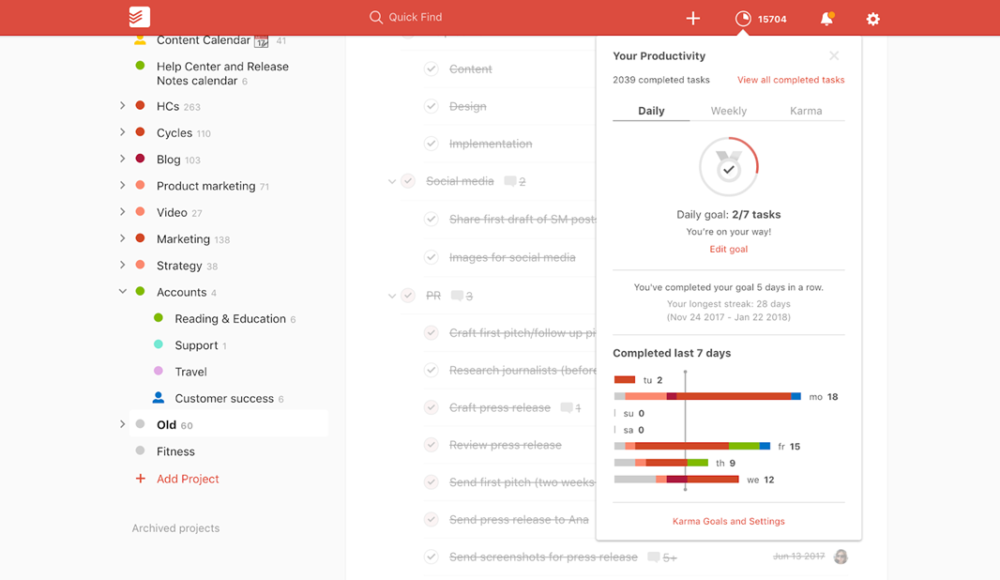
If you have ever ended a busy week with three different to do lists, a calendar full of meetings, and an inbox that feels like a second job, you already know the core problem Todoist is trying to solve: capturing work fast, organizing it cleanly, and keeping it visible long enough to actually finish it.
Most task apps fail in one of two ways. They are either too lightweight to support real workflows once life gets messy, or they become so feature heavy that you spend more time maintaining the system than doing the work. Todoist sits in the middle. It is intentionally opinionated, fast to use, and surprisingly deep once you start leaning on filters, recurring work, reminders, and now AI assisted features like Filter Assist, Task Assist, Email Assist, and Ramble.
Todoist is built by Doist, a bootstrapped and remote first company behind Todoist and Twist. The product has been around long enough to feel mature, but it continues to ship meaningful updates, including a broader AI layer (Todoist Assist), expanded calendar experiences, and an updated security posture (including SOC 2 Type II compliance communicated as of December 2025).
TodoistOverall verdict: 9.0/10. Todoist is one of the best choices if you want a reliable, cross platform task manager that is fast to capture in, flexible to organize, and strong enough for light team collaboration. It is not a full project management suite, and it does not try to be. For many people, that focus is the feature.
Todoist
With Todoist, users can collaborate and share projects and goals with colleagues, family, and friends in real-time. Todoist helps users to achieve more by breaking big tasks into smaller sub-tasks (multi-level) and manage complexity by breaking big projects into smaller sub-projects. Todoist notifies users when important changes happen via emails or push notifications. Todoist users can add due dates and create repeating due dates easily with normal language. Todoist offer users real-time data synchronization across all devices and platforms. With Todoist, users can prioritize tasks by using color-coded priority levels. With Todoist Karma, users can track their productivity and visualize…
• Access tasks everywhere
• Collaborate on shared tasks
• Distraction-free design
• Sub-tasks
• Sub-projects
• Project templates
• Real-time data synchronization
• Basic - Free
• Premium - $28.99 / year
Here’s what this review covers
- Overview and company background
- Pricing and plans (with a detailed comparison table)
- Setup and onboarding experience
- User interface and ease of use
- Core features breakdown (real workflows, strengths, weaknesses)
- Advanced features, AI, and integrations (including Todoist Assist)
- Performance, reliability, and security
- Customer support and resources
- Pros and cons
- User reviews and ratings summary
- Alternatives and comparisons
- Who Todoist is best for (and who should avoid it)
- Final verdict and recommendations
- FAQ (15 common questions)
Overview and company background
What is Todoist?
Todoist is a cross platform task manager designed for individuals and teams who want a single place to capture tasks, plan priorities, and track execution day to day. At a high level, it combines:
- Fast capture (Quick Add, natural language input, email forwarding, voice capture via Ramble)
- Structured organization (projects, labels, filters, priorities, sections, subtasks)
- Multiple ways to view work (list, board, calendar layout depending on plan and context)
- Collaboration features (shared projects, comments, assignments, team workspace on Business)
- Integrations and automations (calendar, email, third party tools, API)
Todoist positions itself as a calm productivity system rather than a complex project tracker. It is built to help you stay consistent: capture quickly, decide what matters, and keep execution friction low.
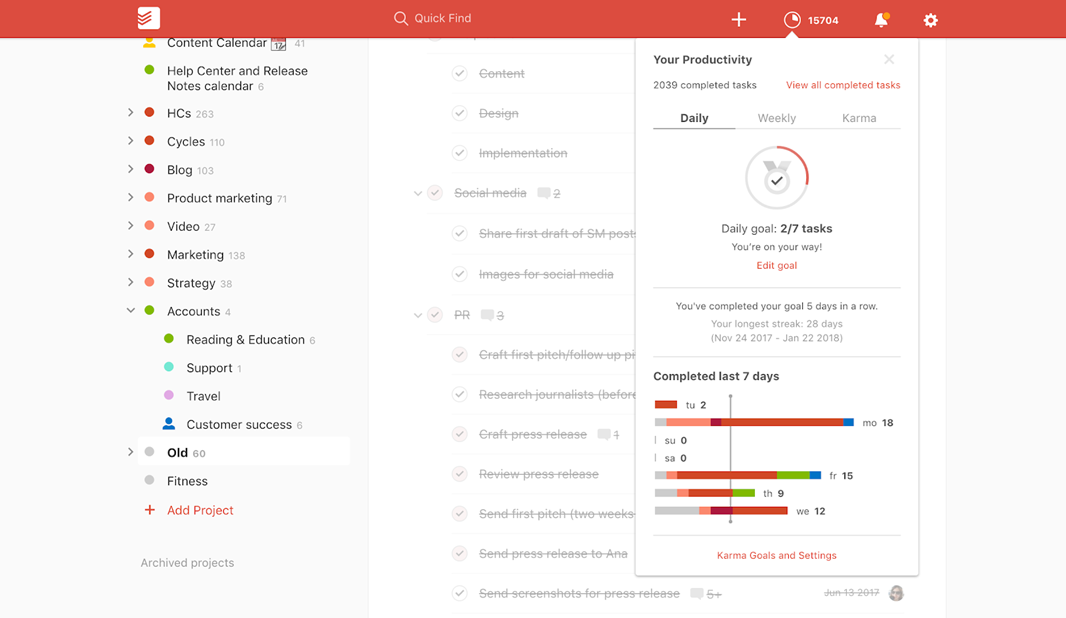
Company background and milestones
Todoist is built by Doist, a company that emphasizes long term independence and bootstrapped growth. Doist has publicly described itself as an independent company without plans to sell or get acquired.
On the product origin side, Doist’s founder Amir Salihefendic has written about starting Todoist in January 2007 as a side project to manage a chaotic workload while studying.
- Long operating history: started in 2007 and has evolved steadily from personal productivity into team oriented plans and features.
- Scale signals: publicly celebrated milestones like 1,000,000,000 completed tasks, which suggests longevity and broad usage.
- Security posture: Todoist has more explicitly communicated enterprise-ready controls, including SOC 2 Type II as of December 2025 (as stated in its security messaging).
Target audience and market positioning
Todoist’s sweet spot is broad:
- Personal productivity: life admin, habits, errands, personal projects, routines
- Professional execution: tasks across meetings, deep work, follow ups, deliverables
- Lightweight team coordination: shared projects, assignments, templates, activity logs (especially on Business with a shared workspace)
Where it is not trying to compete:
- Enterprise program management
- Heavy dependency mapping, complex Gantt scheduling, or portfolio dashboards
- Deep native resource management and time tracking (many users integrate time tracking rather than expecting it inside Todoist)
High level differentiators
- Speed of capture: natural language input, Quick Add, email to task, and voice capture via Ramble.
- Power without clutter: filters, labels, priorities, and recurring logic are deep enough for serious systems, but the interface stays minimal.
- Strong cross platform footprint: apps, extensions, widgets; plus modern planning views (lists, boards, and calendar layout).
- AI focused on real pain points: Filter Assist, Task Assist, Email Assist, and Ramble are designed to reduce workflow friction (not to turn Todoist into a “project suite”).
- Team plan that stays simple: Business adds governance and shared workspace concepts without turning the product into a heavyweight PM tool.
Pricing and plans
Todoist’s pricing is best understood as three layers:
- Beginner: free, limited projects and history, but still usable
- Pro: the serious personal plan that unlocks scale, calendar layout, advanced filters, and AI tools
- Business: adds a team workspace, admin controls, shared templates, and higher team limits
Important note on pricing changes: Doist announced pricing updates effective December 10, 2025, including increases for monthly subscriptions. If you see different numbers across pages or third-party listings, this timing is often the reason.
Plan comparison table
Prices below are shown in USD and are per user unless noted.
| Plan | Price billed yearly | Effective monthly (annual) | Price billed monthly | Key limits | Notable included features |
|---|---|---|---|---|---|
| Beginner | $0 | $0 | $0 | 5 personal projects, 3 filter views, 1 week activity history, 5 MB file uploads | Smart Quick Add, reminders (limited by plan settings), list & board layouts, integrations |
| Pro | $60/year | $5/month | $7/month (per Dec 10, 2025 update) | 300 personal projects, 150 filter views, unlimited activity history, 100 MB file uploads | Calendar layout, task duration, custom reminders, Task Assist, deadlines, auto backups |
| Business | $96/year + local tax | $8/month (annual) + local tax | $10/month + local tax (per Dec 10, 2025 update) | Shared workspace, up to 500 team projects, up to 1000 members/guests, 1000 folders | Team roles/permissions, shared templates, granular activity logs, centralized billing, calendar layout for team projects |
What is actually limited in the free plan?
Todoist’s Beginner plan is not a toy, but it is intentionally constrained. The limit that hits first for most people is the 5 personal projects cap and the restricted filters and history limits.
A practical way to pressure test the free plan is to set up three areas:
- Personal life admin
- Work execution
- A recurring system (weekly review, routines, or habits)
If you immediately feel friction, that friction usually maps directly to Pro unlocks: more projects, more filters, unlimited history, larger uploads, and backups.
Hidden costs and gotchas
- Local tax: Business adds local tax in many regions, increasing effective price.
- Per user scaling: Business scales by seat; department-wide rollouts add up.
- Feature gating: Reminders and personalization depth are frequently tied to paid plans (some users dislike this).
- Integration costs: Automation tools like Zapier may carry separate pricing even if Todoist connects to them.
Value for money: who each level suits best
- Beginner: light personal task tracking, students, or anyone validating fit.
- Pro: the long term personal system plan—calendar layout, task duration, deadlines, unlimited history, auto backups, plus the most useful AI tools.
- Business: worthwhile when you need shared workspace and governance: roles, billing, templates, and activity logs—without adopting a full project suite.
Setup and onboarding experience
Todoist’s onboarding is built around one core assumption: the faster you get tasks out of your head and into a trusted inbox, the faster you feel relief.
Sign up and first run experience
Creating an account is straightforward, and the product quickly funnels you into a few core areas:
- Inbox capture
- Today view
- Upcoming planning
- A starter project or template path
Onboarding support and learning aids
Todoist has extensive written documentation and guidance, with feature specific articles for reminders, filters, backups, and more. That matters because Todoist’s real power is not in the first 15 minutes, but in the systems you build over weeks.
Migration and import options
Todoist supports CSV export and import at the project level, which is a practical path if you are moving from another tool or want a backup you can work with.
A realistic migration approach:
- Export one project from your old tool into CSV
- Create a matching project in Todoist
- Import the CSV
- Rebuild labels, filters, and recurring logic manually where needed
- Repeat project by project
Time to get started
For a personal setup, you can be productive in under an hour. For a team setup, expect a few working sessions to define:
- Project structure
- Naming conventions
- What labels mean
- What filters represent
- How you want to use calendar layout
- How you want to handle templates and shared workflows
User interface and ease of use
Todoist’s UI is one of the main reasons it has remained a default recommendation for years: it is clean, predictable, and fast.
Navigation and core layout
Todoist generally revolves around a left sidebar and a few primary views:
- Inbox for capture
- Today for execution
- Upcoming for planning
- Projects for structure
- Filters and Labels for custom dashboards you define
The design goal is simple: reduce steps between thinking of work and capturing it, then reduce steps between seeing work and doing it.
List, board, and calendar views
Todoist supports list and board layouts broadly, and adds calendar layout as a Pro feature (with calendar layout for team projects included in Business).
- Lists are best for fast triage and daily execution
- Boards help when you want stages like “Next, Doing, Waiting, Done”
- Calendar layout becomes important when your week is constrained by meetings and you want realistic scheduling
If you use Google Calendar or Outlook Calendar heavily, Todoist’s calendar integration can sync scheduled tasks so you can plan across systems.
Learning curve
Todoist has two learning curves:
- Basic usage: very low (add tasks, complete tasks immediately)
- Power usage: moderate (filters, label taxonomies, recurring systems)
The best way to shorten the power curve is to treat Todoist like a programming language: start with simple patterns, then refactor as you learn.
Simple “start small” pattern (copy-and-adapt):
- Start with two labels: @work and @personal
- Add one filter: Today & overdue
- Add one weekly recurring task: Weekly review every Friday
- Only add complexity when you feel a repeated pain point
Mobile experience
Todoist’s mobile presence is a major part of its value. In practice, mobile is where capture features like reminders and location based nudges become real.
Customization options
Todoist is customizable, but not in the “build your own UI” sense. You can adjust themes and how you structure projects, labels, and filters—but it intentionally avoids becoming a fully modular workspace. If you want databases, pages, and custom schemas, you may prefer Notion. If you want a task system that stays a task system, Todoist’s constraints are often a benefit.
Screenshot guidance (for publication-ready visuals)
If you want this article to be truly publication-ready, capture screenshots from your own account (rather than relying on vendor marketing images). Here are the best screenshots to capture:
- Inbox + Quick Add
Caption: “Fast capture with natural language input keeps tasks from leaking into notes and inboxes.” - Today view
Caption: “Todoist’s Today view is optimized for daily execution and quick triage.” - Upcoming + calendar layout (Pro)
Caption: “Calendar layout helps turn a task list into a realistic schedule.” - A filter dashboard
Caption: “Filters act like dynamic dashboards across projects and labels.” - Shared project (team workflow)
Caption: “Assignments and comments enable lightweight team coordination.”
Core features breakdown
This section is where Todoist either clicks for you or it does not. The features are not just a checklist; they are building blocks for building a personal or team execution system.
1) Task capture and inbox processing
Todoist is designed to capture tasks at the speed of thought.
Key capture methods:
- Smart Quick Add + natural language: “Send proposal tomorrow at 3pm” is parsed automatically.
- Email forwarding: turn emails into tasks or comments without copy/paste.
- Voice capture via Ramble: speak naturally; Todoist transcribes and captures actionable tasks.
Practical workflow that works well:
- Capture everything into Inbox during the day
- Process Inbox once daily (or twice if you are managing high volume)
- For each item, decide: do now (under 2 min), schedule it, assign it, label it, or drop it
Strengths: fast entry, strong email-to-task bridge, Ramble reduces the “I’ll add it later” failure mode.
Weaknesses: if you need start dates, formal time tracking, or heavy project fields, you may feel constrained.
2) Projects, sections, subtasks, and hierarchy
Todoist’s structure is intentionally simple: projects, sections, subtasks, priorities, and descriptions.
- Projects = containers like Work, Personal, Client A, Content Calendar
- Subtasks = lightweight nesting under parent tasks
- Priorities = triage urgency/importance
- Descriptions = context without turning tasks into documents
It is excellent for parallel streams of work and repeatable checklists, but it is not designed for multi-level WBS structures with formal dependencies and heavy cross-project reporting.
3) Views: list, board, and calendar layout
Views change how you plan:
- List layout: linear execution
- Board layout: stage-based flow
- Calendar layout: time-based planning (Pro and Business)
4) Filters: the feature that makes Todoist feel advanced
Filters are how Todoist becomes your command center. A filter is essentially a saved query that returns a dynamic list of tasks across projects and labels.
Todoist also offers Filter Assist, which helps create filters from plain language descriptions, reducing the need to learn query syntax immediately.
Why filters matter:
Most people do not actually want to manage projects. They want to manage decisions. Filters turn projects into backend structure and give you decision-focused front doors like: “Deep work tasks due this week,” “Waiting on others,” “Quick wins,” or “Admin tasks for Friday.”
5) Labels: flexible categorization without over engineering
Labels are best used for one of these patterns:
- Context: calls, errands, computer, deepwork
- Area: marketing, finance, ops
- Energy: quick, focus
- Status: waiting, blocked
A common mistake is over labeling. If you are new, start with 5 labels or fewer, then grow slowly.
6) Recurring due dates, deadlines, and task duration
Recurring due dates are fundamental for routines. Todoist also highlights Deadlines (Pro) and Task duration (Pro), which matter when you want to evolve from “a list of tasks” into “a plan you can execute.”
- Due date = when should this be done
- Deadline = when must this be done
- Duration = how long will it take
7) Reminders, notifications, and location based nudges
Reminders are often the difference between a task manager you like and one you trust. Todoist can automatically add reminders when you add a date and time to a task, and it supports notification types such as desktop, mobile, and email. It also supports location reminders for arriving at or leaving a place.
8) Collaboration: shared projects, comments, and accountability
Todoist supports sharing projects, comments, and assigned tasks. Business extends collaboration with a shared team workspace, roles and permissions, centralized billing, shared templates, and more complete activity logs.
9) Activity log and auditability
If you collaborate, visibility matters. Todoist’s activity log tracks actions such as tasks added, edited, completed, and comments added. Free plan users typically see up to seven days of activity history, while paid plans extend this history.
10) Backups and exportability
Todoist supports backups and CSV export/import. Backup documentation highlights details such as:
- Backups created on days you are active and make changes
- Up to 21 backups stored as ZIP files (created around midnight in your time zone)
- Projects backed up as CSV files
- Backups include tasks, dates/times, duration, deadlines, recurring dates, comments, and links to attachments
This is a strong trust signal: exportability and backups reduce lock-in risk and improve long-term reliability.
Advanced features, AI, and integrations
Todoist’s advanced layer comes in two forms:
- AI assistance through Todoist Assist
- Integrations and automation through the ecosystem
Todoist Assist: AI focused on workflow friction
Todoist Assist is Doist’s umbrella for AI powered features designed to work behind the scenes and provide suggestions using relevant context from your Todoist account.
- Filter Assist: generates filters from plain language
- Task Assist: refines task wording and breaks tasks into subtasks
- Email Assist: surfaces action items from emails
- Ramble: voice to tasks (speak naturally, capture in real time)
Plan availability note: Beginner includes limited Ramble sessions. Pro and Business include unlimited Ramble sessions (as described in plan messaging).
Integrations ecosystem
Todoist’s integrations typically fall into:
- Calendar integrations (Google Calendar, Outlook)
- Email integrations and email capture
- Browser extensions
- Messaging and collaboration tools
- Automation platforms
- APIs for custom builds
Todoist also markets “90+ integrations” in its plan comparison context.
TodoistHigh value integrations to know (practical shortlist)
| Integration | Category | What it is best for | Notes |
|---|---|---|---|
| Google Calendar | Calendar | Seeing events alongside tasks; rescheduling tasks when plans change | Useful if you time-block and want a single planning surface |
| Outlook Calendar | Calendar | Calendar sync for Microsoft-centric workflows | Pairs well with Business rollouts |
| Email forwarding to Todoist | Email capture | Turning emails into tasks or comments | Strong bridge for inbox-heavy professionals |
| Zapier | Automation | Connecting Todoist to other tools and automating workflows | Zapier pricing is separate; use for “glue” workflows |
| Browser extensions | Capture | Capturing tasks from the web | Helpful for research-heavy roles |
| Developer API | Custom | Internal tooling and custom integrations | Best for teams with engineering support |
If you want deeper customization beyond off-the-shelf integrations, the API is the path for internal automation and custom workflows.
Performance, reliability, and security
Performance and reliability
Todoist’s performance reputation is generally strong because core interactions are lightweight: adding tasks, completing tasks, switching views. The bigger reliability question for most users is sync consistency across devices.
Todoist maintains a public status site (commonly referenced as status.todoist.net), which is a useful baseline transparency signal.
Scalability
Todoist scales predictably:
- Personal usage scales via Pro project and filter limits
- Team usage scales via Business workspace, folder, and member limits
Business is positioned to support large team counts (up to 1000 members and guests), with up to 500 team projects and up to 1000 folders—enough for many organizations that want shared execution without adopting a heavyweight system.
Security and compliance
Todoist’s security posture is documented publicly and framed for business usage. Highlights commonly emphasized include:
- SOC 2 Type II: communicated as of December 2025 in product security messaging
- Encryption: data encrypted in transit and at rest (implementation specifics are typically described in security policy language)
- 2FA: support for two factor authentication via authenticator apps and one-time passcodes
- Infrastructure: cloud hosting and backups described in security policy context
- AI data handling stance: AI features described as running on Doist-controlled infrastructure, designed to prevent customer data exposure to other customers
Practical takeaway for teams: If you are rolling Todoist out inside a company, treat security review like you would for any cloud tool: enforce 2FA, decide on provisioning/offboarding process, and confirm your organization’s requirements against Todoist’s current security documentation.
Customer support and resources
Todoist’s support model is documentation heavy, which fits the product’s self serve nature.
- Help Center: feature documentation (filters, reminders, backups, onboarding)
- Guides and methods: productivity articles and best-practice workflows
- Troubleshooting: public articles for common issues (including 2FA support paths)
One gap compared with enterprise tools is the absence of heavy concierge onboarding and dedicated account management as a default. If you need that, you are typically looking at larger project platforms.
Pros and cons
| Pros | Cons |
|---|---|
|
|
User reviews and ratings summary
To ground the review in market sentiment, it helps to look at both ratings and the themes that show up repeatedly.
Ratings snapshot (as commonly referenced)
| Platform | Headline rating (directional) | Notes |
|---|---|---|
| Capterra | 4.6 / 5 (2,619 reviews) | Value for money score listed as 4.5 in some views |
| G2 | Ratings vary by page and filter | Common praise: intuitive design; common complaints: missing advanced PM features |
Common praise themes
- Intuitive design and ease of learning
- Simplicity and daily usability
- Task management that stays fast and practical
- Organization through labels, deadlines, and a clean interface
Common complaint themes
- Missing features for more advanced project management and tracking
- Limited customization (themes and interface personalization)
- Free tier and premium gating frustrations
- Perception of being expensive for casual users (especially on monthly billing)
Trends over time (directionally)
- Todoist is investing heavily in AI features under Todoist Assist
- Security posture is being formalized and communicated more explicitly (SOC 2 Type II messaging)
- Pricing changes (Dec 2025) can influence perceived value
Alternatives and comparisons
Todoist’s best alternatives depend on why you are considering switching. The strongest comparison is not “which app has more features,” but “which app matches your workflow style.”
Top alternatives (and what they do better)
- TickTick: often preferred by users who want a more all-in-one productivity bundle.
- Microsoft To Do: best for Microsoft ecosystem users who want a free, simple task list with Outlook alignment.
- Things 3: best for Apple-only users who prefer one-time purchases and an offline-friendly personal system.
- Asana: best for teams needing deeper project management, goals, and portfolio planning.
- Google Tasks: best for lightweight capture tied closely to Google Calendar.
Side by side comparison table
| Tool | Best for | Pricing model | Strength vs Todoist | Where Todoist wins |
|---|---|---|---|---|
| Todoist | Focused personal + light team execution | Free + subscription | Fast capture, filters, AI assist, cross platform | N/A |
| TickTick | All-in-one productivity bundle | Subscription | More bundled productivity tooling | Todoist tends to feel cleaner and more focused |
| Microsoft To Do | Microsoft ecosystem task lists | Free | Cost + Outlook alignment | Todoist is stronger for filters, planning, and systems |
| Things 3 | Apple-only personal productivity | One-time purchase | UI polish + Apple-first design | Todoist wins on cross platform + team support |
| Asana | Structured PM for teams | Per-user subscription | Portfolio, goals, advanced PM | Todoist is faster and simpler for daily execution |
| Google Tasks | Lightweight tasks in Google ecosystem | Free | Tight Google integration | Todoist is deeper (filters, labels, reminders, AI assist) |
When to choose Todoist vs alternatives
Choose Todoist if you want:
- A system you will actually use daily
- Fast capture and low-friction planning
- Filters and labels that can evolve into a personal operating system
- A team layer that stays simple
Choose Asana if you want:
- Heavy PM primitives, dependencies, reporting, and portfolios
Choose Things 3 if you want:
- Apple-only + offline-friendly planning
- One-time purchases instead of subscription
Choose TickTick if you want:
- A more bundled “one app does everything” approach
Who Todoist is best for (and who should avoid it)
Todoist is best for
- Individuals who want a dependable daily execution system: a single inbox, a clean Today list, and custom views via filters.
- People who think in systems and routines: recurring tasks, reminders, deadlines, and duration support repeatable operational work.
- Small teams that need shared ownership without complexity: Business adds governance and workspace while remaining lightweight.
- Busy professionals who live in email and calendar: email forwarding and calendar sync connect intention and schedule.
You should avoid Todoist if
- You need full project management: dependencies, portfolios, resourcing, and deep reporting.
- You want highly customizable workspaces: you may prefer Notion-style systems with bespoke schemas.
- You strongly prefer one-time purchase + Apple only: Things 3 is the clearest alternative in that lane.
Final verdict and recommendations
Todoist succeeds because it stays true to a narrow promise: make it effortless to capture, organize, and execute tasks every day. It has grown beyond a simple list through filters, calendar planning, collaboration, and now AI assistance, but it still feels like a task manager first.
Rating: 9.0/10
Score breakdown (practical):
- Features: 9/10
- Ease of use: 9.5/10
- Integrations: 8.5/10
- Team readiness: 8.5/10
- Value: 8.5/10 (strong annually; less attractive monthly after Dec 2025 pricing change)
- Security and trust: 9/10
My recommendation
- Start with Beginner to validate fit.
- Upgrade to Pro if you hit project limits, want calendar layout, or want Todoist Assist features to reduce friction.
- Use Business only if you truly need a shared workspace plus governance (roles, billing, logs).
Practical pilot: Run Todoist for 14 days with (1) an Inbox-first capture habit, (2) one filter dashboard you actually check daily, and (3) one recurring weekly review. If those three stick, Todoist is likely a long-term fit.
Todoist
With Todoist, users can collaborate and share projects and goals with colleagues, family, and friends in real-time. Todoist helps users to achieve more by breaking big tasks into smaller sub-tasks (multi-level) and manage complexity by breaking big projects into smaller sub-projects. Todoist notifies users when important changes happen via emails or push notifications. Todoist users can add due dates and create repeating due dates easily with normal language. Todoist offer users real-time data synchronization across all devices and platforms. With Todoist, users can prioritize tasks by using color-coded priority levels. With Todoist Karma, users can track their productivity and visualize…
• Access tasks everywhere
• Collaborate on shared tasks
• Distraction-free design
• Sub-tasks
• Sub-projects
• Project templates
• Real-time data synchronization
• Basic - Free
• Premium - $28.99 / year
FAQ (15 common questions)
1) Is Todoist free?
Yes. Todoist offers a free Beginner plan with limits such as 5 personal projects, 3 filter views, and 1 week activity history.
2) What is the difference between Beginner and Pro?
Pro expands project limits (up to 300 personal projects), unlocks calendar layout, task duration, custom reminders, 150 filter views, unlimited activity history, deadlines, Task Assist, and auto backups.
3) How much does Todoist cost?
As commonly shown on pricing pages: Pro is $60 billed yearly and Business is $96 billed yearly plus local tax. Pricing updates effective December 10, 2025 list monthly pricing changes (Pro $7 monthly and Business $10 monthly plus tax).
4) Does Todoist have a calendar view?
Yes. Todoist includes calendar layout as a Pro feature, and Business includes calendar layout for team projects. Todoist also supports syncing scheduled tasks to Google Calendar or Outlook Calendar via its calendar integration.
5) Can Todoist sync with Google Calendar?
Yes. Todoist’s Google Calendar integration highlights syncing tasks with a date/time and the ability to reschedule when plans change.
6) Can I turn emails into tasks?
Yes. You can forward emails to Todoist to create tasks or comments (the email subject becomes the task name, and the body is included in the task’s comment context depending on configuration).
7) Does Todoist support reminders?
Yes. Todoist can add reminders automatically for tasks with a date and time, and supports notification types such as desktop, mobile, and email (availability and depth can vary by plan).
8) Does Todoist support location based reminders?
Yes. Todoist supports location reminders that can trigger when arriving at or leaving a selected place.
9) What is Todoist Assist?
Todoist Assist is Todoist’s AI powered suite of tools designed to reduce workflow friction by using relevant context from your account to provide suggestions.
10) What is Filter Assist?
Filter Assist helps generate filters using plain language descriptions, reducing the need to learn filter query syntax immediately.
11) What is Task Assist?
Task Assist helps enhance workflows by suggesting better task names, creating subtasks, and making tasks more actionable.
12) What is Ramble?
Ramble is a voice to tasks feature that listens, transcribes, and captures actionable tasks in real time. As part of Todoist Assist, it turns spoken words into structured tasks with details like projects, dates, deadlines, and priorities.
13) Does Todoist have backups?
Yes. Todoist supports backups and exportability; documentation commonly highlights backups created on active days, stored as ZIPs, with project CSV export included.
14) Does Todoist support two factor authentication?
Yes. Todoist supports 2FA using a third party authenticator app and one time passcodes (as described in its security help content).
15) Is Todoist good for teams?
It can be, especially for lightweight coordination. Business adds a shared team workspace, team roles and permissions, shared templates, and granular activity logs. For complex project management, many teams still prefer dedicated PM tools.


By clicking Sign In with Social Media, you agree to let PAT RESEARCH store, use and/or disclose your Social Media profile and email address in accordance with the PAT RESEARCH Privacy Policy and agree to the Terms of Use.