
SaneBox Review: Deep Dive into Features, Pricing, and Achieving Inbox Zero Effortlessly
If your inbox feels like a second job, you are not imagining it. Email is one of the few tools that can quietly consume hours every week, not because any single message is hard, but because the stream never stops. Newsletters pile up. Notifications multiply. Threads you meant to reply to vanish. Attachments get lost. Then you compensate with more folders, more rules, more searching, and more stress.
SaneBox is built for that exact reality. It is not an email client. It does not replace Gmail, Outlook, Apple Mail, or whatever app you already use. Instead, it plugs into your existing email account and reorganizes the flow using server-side folders and machine learning—pushing lower-priority messages out of your Inbox and into dedicated folders like SaneLater and SaneNews.
What makes SaneBox interesting is also what makes it polarizing: it is an overlay. If you love your current email setup and just want it to behave better, SaneBox can feel like a cheat code. If you want a modern, feature-rich email client with built-in writing assistance and a polished user interface, SaneBox may feel invisible in ways you do not like.
SaneBoxOverall verdict: 8.6/10
Best for: busy professionals who want immediate inbox relief without switching email clients—especially Gmail and Microsoft 365 users who want smarter prioritization, reminders, snoozing, and one-click sender blocking that works everywhere they check mail.
Not ideal for: people who want a single modern email app that includes everything (speed-focused triage UI, AI drafting, collaboration/shared inbox workflows, or deep team analytics). SaneBox is intentionally not that—it focuses on sorting and workflow overlays more than a “new email client experience.”
One-sentence summary: SaneBox is a strong choice if your priority is to reclaim time and attention by letting an algorithm continuously sort your mail into “now” and “later” buckets while you keep using the email app you already like.
Here’s what this review covers
- Introduction
- What SaneBox is (and what it is not)
- How SaneBox works (under the hood)
- Setup and onboarding (first 30 minutes)
- User experience (what it feels like day-to-day)
- Core features (what you actually get)
- Compatibility and integrations
- Security, privacy, and compliance posture
- Performance and reliability
- Pricing and plans (with a practical table)
- Customer support and learning resources
- User reviews and sentiment (patterns to expect)
- Pros and cons
- Alternatives and comparisons
- Who SaneBox is best for (and who should skip it)
- Final verdict and a simple evaluation playbook
- FAQ (15 common questions)
Introduction
This review is designed to help you decide with confidence. I will explain how SaneBox works, what the key features actually do, what setup looks like, how pricing works in practice, where the product shines, where it can frustrate, and how it compares with alternatives.
Decision hinge: If your problem is prioritization and attention, SaneBox is a high-leverage solution. If your problem is that you want a better email client, SaneBox may not be the right tool category.
What SaneBox is (and what it is not)
SaneBox is an overlay, not an email client
The most important product definition is simple:
- SaneBox is not an email client. You do not “switch to SaneBox” as your new inbox app.
- SaneBox is a layer that connects to your existing mailbox and creates smart folders that appear everywhere you use email (desktop, web, mobile) because they are normal server folders.
Why this matters: You are buying a workflow improvement, not a new interface. Setup is “connect and configure,” not “migrate your email life.”
A quick snapshot (how to think about the product)
- Daily usage: your normal inbox + a few SaneBox folders + a digest email.
- Control plane: moving emails between folders trains the system.
- Best outcome: less scanning, fewer interruptions, fewer missed follow-ups.
How SaneBox works (under the hood)
The basic mechanism: connect, observe, sort
SaneBox connects to your email server, learns what you treat as important, and then sorts incoming messages by moving them into server folders (e.g., SaneLater, SaneNews). Your mail still arrives normally—the sorting happens after delivery by folder moves.
What signals does it use?
The practical idea is “behavior-based importance.” The model becomes personal over time: it learns what you respond to (and how quickly), not what an abstract persona “should” care about.
Training: how you teach it your preferences
Training is intentionally low friction: if a message lands in the wrong place, you move it to the right folder—and SaneBox learns from that correction.
Best practice: In week one, correct only obvious mistakes. Over-training too aggressively on day one can confuse the early model.
Failure mode: what happens if SaneBox goes offline?
A healthy inbox overlay should degrade gracefully. In practice, the right expectation is: email continues to arrive as normal, and the only thing you temporarily lose is the sorting convenience until the service is back online.
Setup and onboarding (first 30 minutes)
What onboarding usually looks like
- Connect your mailbox by selecting your provider and authorizing access.
- Folders appear automatically (most users start with SaneLater).
- Train by moving messages that landed in the wrong place.
- Use the digest to review “later” mail without re-opening the floodgates.
A realistic expectation to set
The first few days are the calibration phase. Expect some misclassification early, then rapid improvement as you correct it.
User experience (what it feels like day-to-day)
Where you “use” SaneBox
Day to day, you interact with SaneBox in four places:
- Your normal Inbox (Gmail/Outlook/etc.)
- One or more SaneBox folders (SaneLater, SaneNews, etc.)
- A daily digest email (your low-priority review surface)
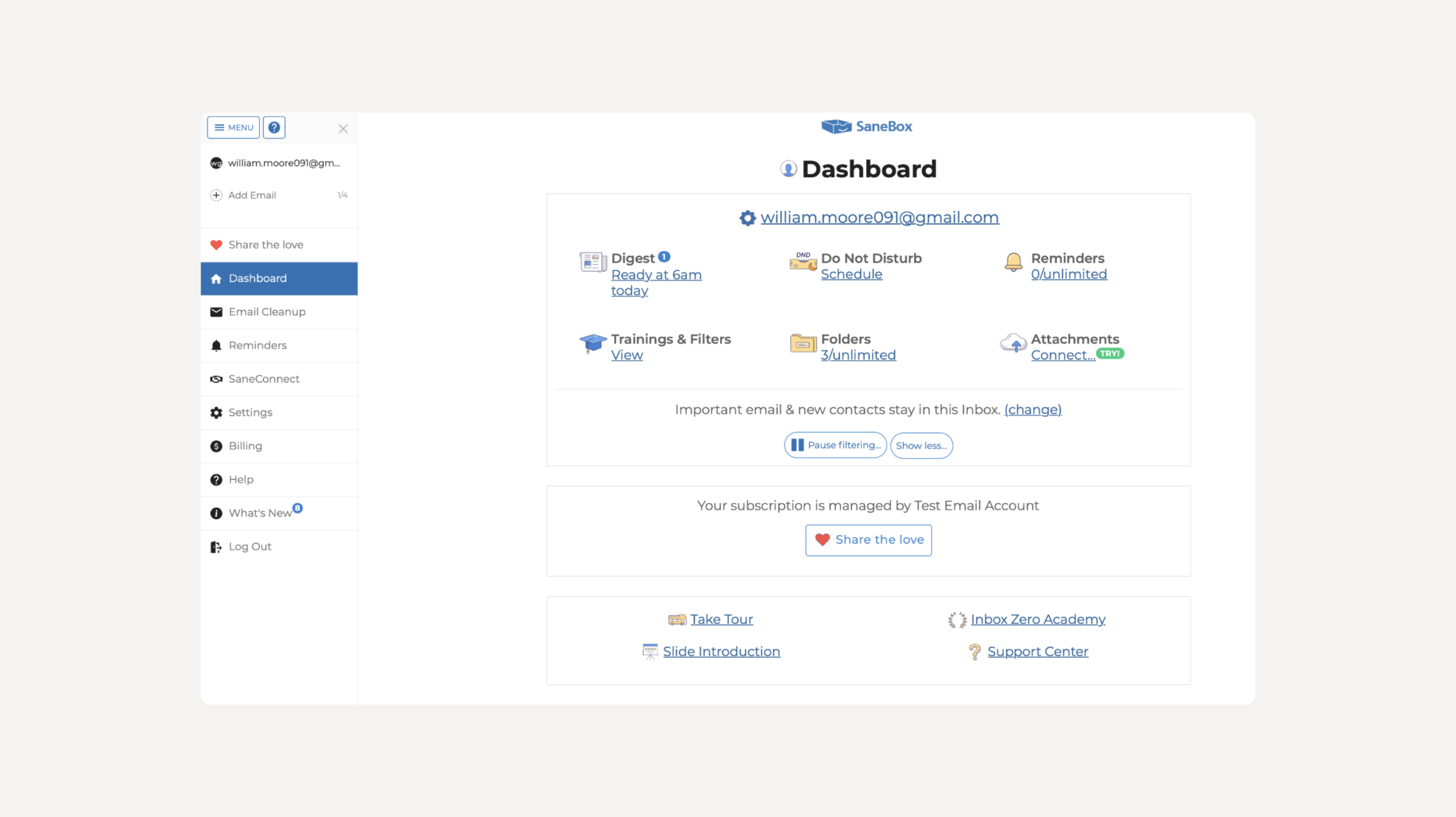
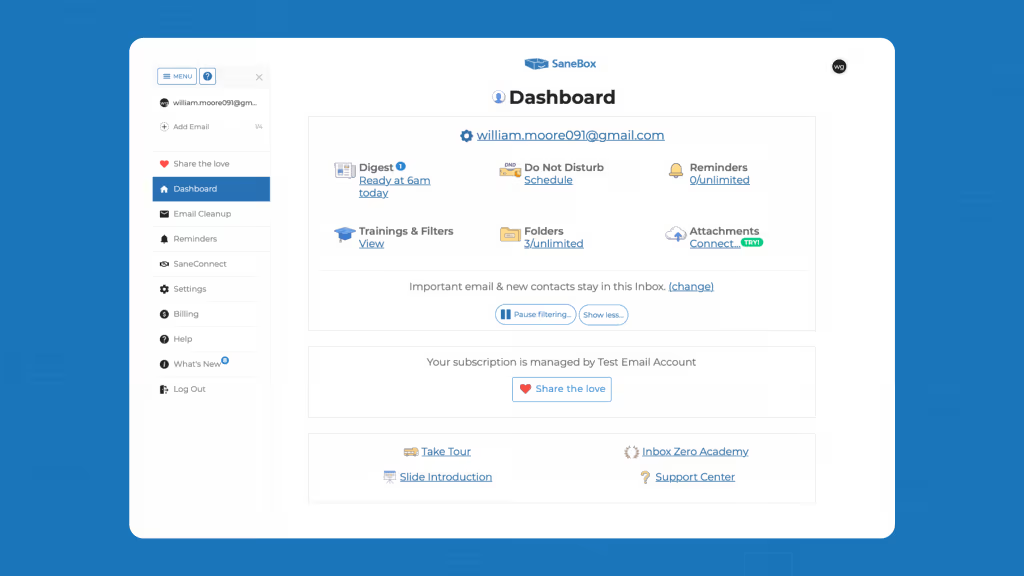
- The SaneBox dashboard for configuration (feature toggles, settings)
Why this feels great for some users
If you already have years of muscle memory in Gmail or Outlook, SaneBox does not fight that. It improves your environment rather than forcing you into a new one.
Why this feels underwhelming for others
If you want a visible, modern productivity UI, SaneBox can feel “too quiet.” The value is in reduced noise, not a new email experience.
Core features (what you actually get)
SaneBox’s feature set is broad, but it clusters into a few themes: prioritization and deferral, blocking and decluttering, reminders and follow-up, attachments and storage control, bulk cleanup, and focus-time protection.
1) SaneLater: the centerpiece of inbox calm
SaneLater is the core “defer it” folder. Non-urgent email is moved out of your Inbox, but still accessible via folder view or the digest.
- Treat SaneLater as a buffer, not a trash can.
- Review once or twice daily (digest-first), not continuously.
- Move “important” items back to Inbox to train the system.
2) SaneNews: newsletters without the distraction tax
SaneNews is designed to collect newsletters into one place so they stop competing with real work. It’s especially useful if you want to keep reading but control when you read.
3) The Daily Digest: the control center for low-priority mail
The digest is the discipline enforcer. It pulls “later” mail into one daily review surface so you can triage quickly (and take actions without opening every folder constantly).
High-ROI habit: treat the digest as your “low priority standup.” Ten minutes of digest review can replace dozens of inbox checks.
4) SaneBlackHole: one-click sender eviction
SaneBlackHole is the fastest way to stop hearing from persistent senders. You move an email to the folder, and future messages from that sender stop flowing into your inbox surfaces.
- Start with the worst repeat offenders.
- Be cautious with transactional senders (bank alerts, invoices).
5) Reminders and follow-up: where SaneBox shifts from sorting to execution
Sorting is only half the inbox problem. The other half is follow-through. SaneBox supports reminder workflows (including sending or CC/BCC’ing to special reminder addresses) and “no reply” tracking so important threads don’t vanish.
- Use short horizons (2–3 days) for revenue-critical threads (sales, client work).
- Use longer horizons (1–2 weeks) for relationship follow-ups.
- Reserve reminders for threads with real cost if dropped.
6) Snooze: defer important emails without losing them
Snoozing is for “important but not now.” Common patterns include “tomorrow,” “next week,” or custom snooze folders.
7) Do Not Disturb: protect focus time by redirecting incoming mail
Do Not Disturb redirects new inbound emails away from your Inbox during a focus session. You process them afterward, instead of getting interrupted in real time.
8) SaneCC: separate CC mail from action-required mail
SaneCC can move “CC’d” mail into a separate folder, reducing false urgency in corporate environments where CC is used as broadcast.
9) DIY Training Folders: teach the system your categories
DIY Training Folders let you create your own categories (Clients, Hiring, Finance, etc.) and train sorting by moving mail like you already do with folders—just with smarter behavior over time.
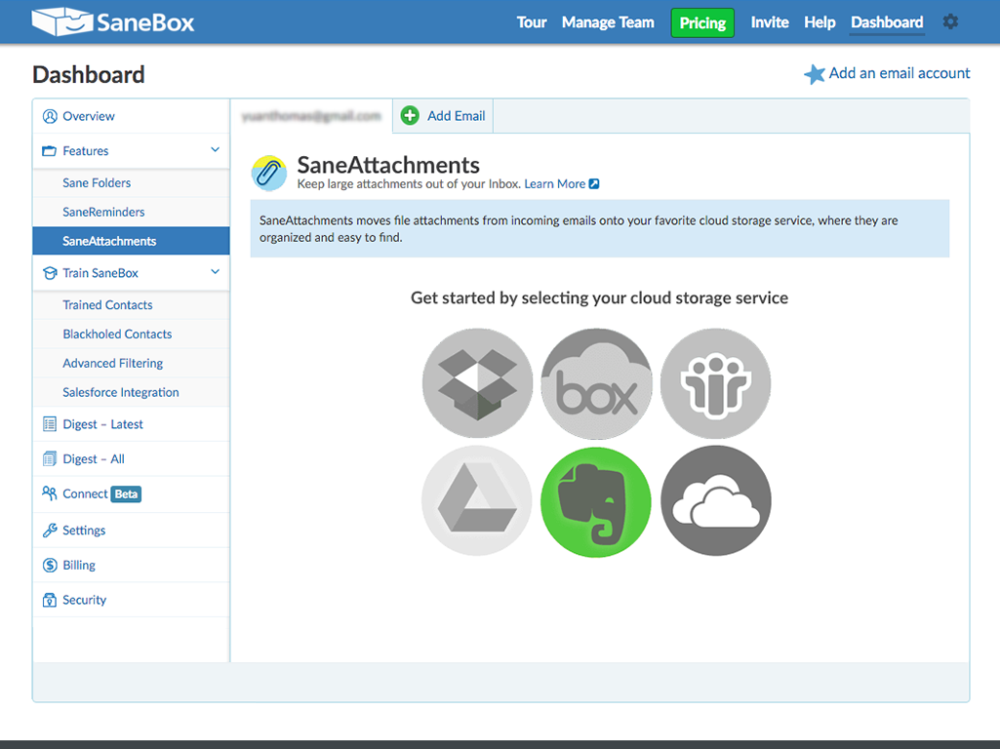
10) SaneAttachments: move attachments to cloud storage
SaneAttachments can automatically move attachments from new incoming emails into your preferred cloud storage. This is one of the most tangible features for people fighting storage limits and sluggish mailbox performance.
Operational detail: attachment automation is powerful. Treat it like a governed workflow—turn it on intentionally, and confirm folder-level controls so you don’t upload more than you intend.
11) Email Deep Clean: bulk delete old, large, or useless mail
Deep Clean is a bulk cleanup feature designed to scan older emails and help you remove high-volume clutter (especially helpful if you’re paying for mailbox storage upgrades).
12) Feature availability by plan: the “pick your features” model
SaneBox plans are typically structured around:
- How many email accounts you can connect, and
- How many SaneBox features you can enable.
Compatibility and integrations
Email provider compatibility
SaneBox is designed to work with major email providers and common mail infrastructures, which is a key advantage over inbox tools that only work as Gmail extensions.
Works with every email client (because it uses server folders)
Because SaneBox uses normal server folders, the workflow remains consistent across devices and email clients (web, desktop, mobile). This is a core reason people adopt it: no retraining per device.
Attachment workflows and cloud storage
If attachments drive your pain (storage, findability, performance), attachment-to-cloud workflows can deliver measurable ROI.
Security, privacy, and compliance posture
Email tools live or die on trust. Before connecting any inbox overlay, you should have clarity on data handling, encryption, access controls, and feature-specific data requirements.
The headline claim: sorting without reading email bodies (by default)
SaneBox’s positioning emphasizes minimal data analysis and a focus on header-level information for core sorting workflows.
The nuance: some features may require content handling
Some advanced workflows (like reminders and attachments) can require limited content access to function correctly. The practical takeaway is to evaluate security posture by feature, not just the product name.
Practical framework: If you are highly sensitive about message content, you may still be comfortable using deferral features (SaneLater/SaneNews). Evaluate reminders, snooze, and attachments more carefully.
Regulated environments (example: HIPAA)
If you operate in regulated environments, treat inbox tools like any other vendor: security review, internal governance, and (if required) contractual protections.
Performance and reliability
What “good” looks like for an inbox overlay
The reliability bar is simple: no lost mail, no blocked mail—just temporary loss of sorting convenience if the service is unavailable.
The most realistic reliability benefit
Because SaneBox uses folders and does not replace your mail provider, your underlying email delivery remains your provider’s responsibility. That typically creates a healthier failure mode than fully replacing your inbox client or routing mail through a brand-new system.
Pricing and plans (with a practical table)
SaneBox typically offers a free trial (commonly cited as 14 days). Plans are usually structured around the number of email accounts and the number of features you can enable.
Pricing reality check: published prices can vary by billing cycle (monthly vs annual vs multi-year) and sometimes by region. Treat the table below as budgeting guidance and confirm the exact rate during checkout.
| Plan | Email accounts | Features | Common monthly reference | Common annual reference | Common 2-year reference |
|---|---|---|---|---|---|
| Snack | 1 | Choose 2 features | ~$7/month | ~$59/year | ~$99/2 years |
| Lunch | 2 | Choose 6 features | ~$12/month | ~$99/year | ~$169/2 years |
| Dinner | 4 | All features | ~$36/month | ~$299/year | ~$499/2 years |
When SaneBox is worth paying for (simple ROI framing)
SaneBox tends to be worth it when at least one of these is true:
- You receive high-volume inbound mail and waste time scanning noise.
- You miss follow-ups and it costs revenue or reputation.
- You are paying for storage upgrades and want cleanup + attachment workflows.
- You work across devices and clients and want consistent organization everywhere.
Customer support and learning resources
Inbox tools are deeply personal. The most practical way to evaluate support is during the trial: submit one or two real questions (your actual setup environment, your actual workflow needs) and see response speed and quality.
User reviews and sentiment (patterns to expect)
Public ratings are imperfect, but patterns across many reviews are useful. The most consistent themes you should expect if SaneBox fits your workflow:
Common positive themes
- Inbox noise reduction and faster scanning
- Convenience of working inside existing email apps
- “BlackHole” style sender blocking as a quick win
Common friction themes
- Pricing can feel high if you want many features at once (especially on monthly billing)
- Some users dislike the lack of a standalone modern client interface
- There is an initial learning curve around training and understanding feature gating
Pros and cons
Pros
- Works with your existing email client across devices—no app switch required.
- Strong core value: defers low-priority mail into “later” folders to protect attention.
- Digest workflow makes low-priority review efficient and reduces inbox-checking loops.
- BlackHole is a fast, consistent workflow for stopping unwanted senders.
- Cleanup and storage value through attachment workflows and bulk cleaning features.
- Good category fit: email is infrastructure, and overlays that survive long-term tend to be battle-tested.
Cons
- Not a full email client replacement (no new UI, no built-in AI writing experience, no collaborative inbox features).
- Feature gating can be confusing if you want many capabilities at once.
- Training required for best accuracy—week one is calibration, not perfection.
- Some features may require limited content handling, which can be a blocker for strict compliance environments.
Alternatives and comparisons
SaneBox sits in a specific category: inbox organization overlays. Alternatives generally fall into three buckets:
1) Premium email clients (speed + interface)
Choose a premium email client when you want to change your email experience (speed-focused triage, shortcuts, AI composition) rather than simply making your current inbox behave better.
2) Team collaboration inbox platforms (shared inbox)
Choose a shared inbox platform when multiple people manage the same customer conversations and you need assignment, internal comments, templates, SLAs, and team analytics.
3) Cleanup-focused tools (bulk unsubscribe + archive)
Choose a cleanup tool when your primary pain is mass unsubscribe and bulk cleanup—not ongoing behavior-based prioritization.
The key differentiation: SaneBox improves the inbox you already have and continues to learn from your behavior, using server folders and a digest workflow as the control plane.
Who SaneBox is best for (and who should skip it)
SaneBox is a strong fit if you are:
- A knowledge worker with high inbound volume and constant noise.
- A leader who needs to stay responsive without living in email.
- A salesperson or operator who loses deals or tasks due to missed follow-ups.
- A multi-device email user who wants consistent organization everywhere.
You should probably skip SaneBox if you are:
- Expecting a modern email client replacement rather than a behind-the-scenes organizer.
- Looking for a free solution with similar depth (SaneBox is subscription-based).
- In a strict environment where any content handling by a third party is unacceptable.
Final verdict and a simple evaluation playbook
If your inbox problem is fundamentally prioritization and attention, SaneBox is one of the most direct solutions available. Its biggest strength is that it removes interruption-driven email checking and reduces the cognitive load of scanning noise without forcing you to adopt a new email app.
How to evaluate the trial (a structured approach)
- Turn on SaneLater and SaneNews.
- Use the digest daily for a week (and keep it disciplined).
- Add BlackHole for the worst offenders.
- Add reminders if follow-up is a real pain point.
- Only then decide whether you need broader feature access (Lunch/Dinner).
Bottom line: If you adopt the workflow (digest + training), you will know quickly whether SaneBox is “nice” or “essential.”
FAQ (15 common questions)
1) What is SaneBox in plain terms?
SaneBox is an email management service that connects to your existing mailbox and sorts less important email into dedicated folders, then summarizes them in a digest so your Inbox stays focused.
2) Do I have to switch away from Gmail or Outlook?
No. SaneBox works with your current email provider and adds folders to your existing setup, so you keep using Gmail, Outlook, Apple Mail, and mobile apps.
3) Which email services does SaneBox support?
It is designed to work with major providers and common mail infrastructures. The key idea is: if your email supports standard server folders, SaneBox’s model generally fits.
4) How does SaneBox decide what is important?
It learns from your behavior—what you open, reply to, and prioritize—then uses that pattern to sort future messages.
5) What is SaneLater?
SaneLater is a folder where SaneBox places new emails it considers not urgent, so your primary Inbox stays focused on messages that matter right now.
6) What is the daily digest and why does it matter?
The digest is a daily summary of messages in SaneLater and other enabled folders. It lets you review lower-priority mail quickly without constantly browsing folders.
7) What is SaneBlackHole?
SaneBlackHole is a folder where you move a sender you never want to hear from again. It’s a fast way to block repeat offenders.
8) Can SaneBox remind me to follow up?
Yes. Reminder workflows are designed to prevent important threads from slipping through the cracks, especially for sales and client conversations.
9) Does SaneBox have “snooze”?
Yes. Snoozing helps you defer important messages until a time you choose (tomorrow, next week, or a custom schedule).
10) What is Do Not Disturb?
Do Not Disturb redirects new inbound emails away from your Inbox during focus sessions, then you process them later.
11) Can SaneBox move attachments to cloud storage?
Yes. Attachment workflows can upload attachments from new incoming emails into connected cloud storage, reducing mailbox bloat and improving findability.
12) What is Email Deep Clean?
Deep Clean is a bulk cleanup feature that scans older emails and helps you remove large or unneeded messages to reduce clutter and free space.
13) Is SaneBox secure and private?
Email tools require trust. Evaluate security by feature (sorting vs reminders vs attachments), and confirm the vendor’s data handling posture for your environment.
14) What happens if I cancel?
In most inbox overlay models, canceling means sorting stops and you can decide whether to keep or remove the folders created by the service.
15) How much does SaneBox cost?
SaneBox commonly offers Snack, Lunch, and Dinner tiers. Prices vary by billing cycle and region, so confirm the exact rate during checkout.


By clicking Sign In with Social Media, you agree to let PAT RESEARCH store, use and/or disclose your Social Media profile and email address in accordance with the PAT RESEARCH Privacy Policy and agree to the Terms of Use.