
Capsule CRM Review: Practical CRM for Small Teams That Want Momentum (Not Admin Work)
If you’ve ever tried to “run a CRM” with spreadsheets, sticky notes, and a messy inbox, you already know the core problem: your customer context is scattered. Deals slip because follow-ups weren’t assigned. A teammate replies to a client without seeing the last email. Delivery work starts without the promised scope sitting anywhere reliable. Everyone’s busy, but no one’s fully sure what’s happening.
Capsule CRM exists for that exact moment.
Capsule positions itself as a CRM that stays simple—without being simplistic—so small teams can manage contacts, track deals, coordinate tasks, and even run lightweight project delivery in one place. The promise is that you get clarity and continuity (who is this, what did we promise, what happens next?) without turning CRM upkeep into a part-time job.
Based on Capsule’s product documentation, security disclosures, integration guidance, and a cross-section of third‑party and vendor-cited user feedback, Capsule is best understood as a “small-team operating system” for customer-facing work: contacts + pipeline + tasks + projects + email logging + reports, with automation and deeper controls unlocked as you move up the plans.
Capsule CRMOverall verdict: 8.7/10. Capsule is a strong fit for small businesses that value usability, a clean UI, and fast adoption over deep enterprise customization. It’s not trying to be Salesforce (and that’s the point). If your main goal is “keep the team aligned and moving,” Capsule does a lot right—and its security posture is more serious than many SMB tools.
Capsule CRM
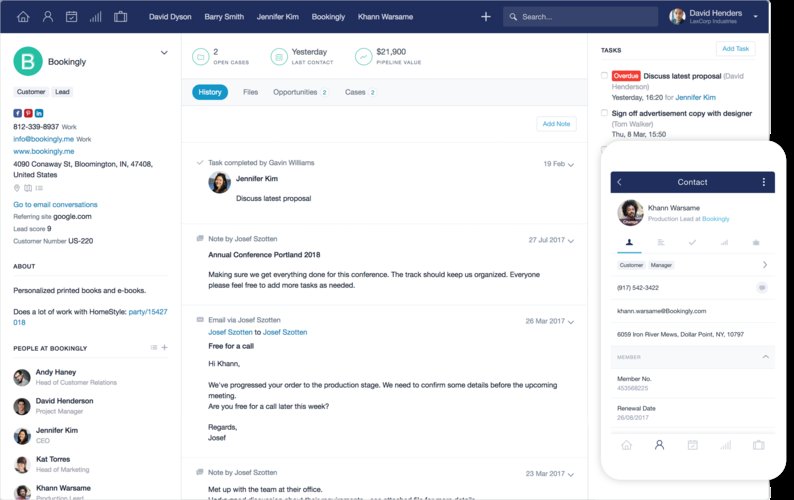
Capsule CRM is a simple CRM system aiming to keep your business organized, improve your customer relationship, and to make the most of sales opportunities, all the while minimising user input. The contact page gives you a complete overview of a contact so that you can keep track of the people, companies and other organizations that you do business with and with the option to share contacts with co-workers ensuring a single up-to-date view of the contact. Use Capsule to track bids, deals, proposals and other opportunities. You also have the option to generate reports and extracts from the pipeline…
•Track all history
•Attach documents
•Manage tasks
•Share with co-workers
•Free
•Professional- $12 MONTH/USER
•Track all history
•Attach documents
•Manage tasks
•Add notes and store emails by sending them from any email client into Capsule.
•Add and complete tasks that need to be done for each contact.
•Record the information you need about each contact.
Here’s what this review covers
- Overview and company background
- Pricing and plans (with a comparison table + “hidden costs”)
- Setup and onboarding experience
- User interface and ease of use (plus screenshot checklist)
- Core features (contacts, pipeline, tasks, projects, email, automation, reporting)
- Advanced features and integrations (API + REST hooks + top apps)
- Performance, reliability, and security
- Customer support and learning resources
- Pros and cons
- User reviews and ratings summary
- Alternatives and comparisons (side-by-side table)
- Who it’s best for (and who should avoid it)
- Final verdict and recommendations
- FAQ (15 common questions)
Overview and company background
What Capsule CRM is (in plain terms)
Capsule CRM is a customer relationship management platform designed to help small teams:
- Centralize contacts (people + organizations) with an activity timeline
- Track opportunities in a visual sales pipeline
- Assign tasks and manage calendars to reduce follow-up gaps
- Run lightweight projects that connect directly to the customer record
- Log and track email threads from Gmail/Outlook so context stays attached to the relationship
- Report on sales and activity without building a complex BI stack first
Capsule’s positioning is consistent across its public materials: it aims to keep CRM adoption friction low so that usage stays high.
Who it’s for
Capsule is most explicitly designed for:
- Small businesses and freelancers who want a CRM that’s usable daily without heavy admin work
- Service firms that want to connect “sold work” to “delivered work” using Projects (consultancies, agencies, accountants, construction/service providers, etc.)
- Teams that live in email and want email logging plus in-CRM tasks and follow-ups
Company history and credibility signals
Capsule states it has been simplifying CRM since 2009, and it is based in Manchester, United Kingdom. Capsule also indicates it is a service of Zestia Ltd, registered in England.
High-level differentiators
- “Lean CRM” design philosophy: Clean interface and direct workflow across contacts, deals, tasks, projects, email, and reports—without enterprise bloat.
- Projects inside the CRM: Sales-to-delivery continuity (especially useful for services businesses).
- Security posture that’s more mature than many SMB tools: Public documentation on encryption, hosting, backups/replication, and SOC 2 Type II accreditation.
Pricing and plans
Capsule’s pricing is structured per user, with both monthly billing and annual billing (discounted). Capsule also offers a free plan for up to two users and a 14‑day trial for paid plans.
Plan overview (Free → Ultimate)
Capsule describes five plans:
- Free (up to 2 users)
- Starter
- Growth
- Advanced
- Ultimate
Pricing table (monthly vs annual)
Note: Vendors sometimes show different pricing by region/currency and billing term. Treat this as a practical baseline and confirm exact figures on Capsule’s current pricing page for your region.
| Plan | Price (billed monthly) | Price per user/month (billed annually) | Best for | Notable plan signals |
|---|---|---|---|---|
| Free | $0 | $0 | Testing Capsule, very small teams | Up to 2 users; limited contacts/storage |
| Starter | ~$21 | $18 | Small teams that need core CRM structure | Entry paid tier; core CRM modules |
| Growth | ~$38 | $36 | Teams needing automation + dashboards | Workflow automations + reporting dashboards begin here |
| Advanced | ~$60 | $54 | Scaling teams needing higher limits + structure | More capacity and reporting depth |
| Ultimate | ~$75 | $72 | Teams wanting premium onboarding + priority support | Implementation help + dedicated CSM + priority support |
Annual billing savings are typically positioned as “save up to ~14–15%.”
Feature limits and practical thresholds (what actually constrains you)
Capsule’s public materials highlight limits in areas that become very real as your team grows:
- Contacts ceiling: Capsule cites plan scaling up to ~240k contacts on Ultimate.
- Storage per user: Ultimate references ~50GB storage per user (useful if you attach proposals, SOWs, invoices).
- Automation availability: Workflow automation begins at Growth.
- Reporting dashboards: Available on Growth, Advanced, and Ultimate.
- Security controls: Capsule describes SSO and role-based permissions, and nudges teams toward Growth for more granular permission tuning.
Hidden costs and add-ons (what to budget for)
1) Transpond marketing add-on (paid)
Capsule markets Transpond as its marketing add‑on, and Capsule messaging indicates it starts around $11/month. Pricing can depend on the number of Active contacts inside Transpond (billable) rather than total CRM contacts, so you’ll want segmentation governance (who is “Active” and why).
2) Premium onboarding and priority support (Ultimate)
Ultimate includes implementation support, import assistance, and custom training, plus priority support and a dedicated Customer Success Manager. If adoption risk is high or your migration is complex, this “support bundle” can be worth it.
3) “No onboarding costs” messaging
Capsule’s marketing emphasizes no onboarding costs (and no sudden price hikes). Treat this as a positive signal—then still sanity-check internal/partner time if you plan a heavy migration or process redesign.
Value-for-money analysis (where the “sweet spot” usually is)
- If you need automation, start at Growth. Workflow automations and dashboards begin at Growth—if you need consistent handoffs and follow-ups, this is usually the ROI tier.
- If you mostly need “one place for everything,” Starter may be enough. Contacts + deals + tasks + email logging can be sufficient if you’re coming from spreadsheets and want minimal complexity.
- If you want a guided rollout, Ultimate can be justified. Ultimate is less about features and more about adoption risk reduction via support and onboarding.
Setup and onboarding experience
Capsule repeatedly frames onboarding as quick: “get started in minutes,” with importing from spreadsheets or another CRM positioned as straightforward. In reality, setup is easy—the harder part is building repeatable habits.
Step 1: Sign-up and trial mechanics
Capsule promotes a 14‑day free trial for paid plans. Operationally, Capsule accounts use a company-specific subdomain for the account URL (your Capsule workspace is tied to that subdomain).
Step 2: Importing your data (the make-or-break moment)
Capsule emphasizes importing contacts, deals, and more from a previous CRM or spreadsheet. If you’re on Ultimate, Capsule describes import assistance as part of the plan.
Practical import tip: Before importing, decide (1) what becomes a Person vs an Organization, (2) your minimum required fields, and (3) your tag/custom field strategy. This prevents “CRM landfill” (lots of records, low trust, low usage).
Step 3: First-week configuration checklist (high leverage)
- Add users and define roles/permissions (especially if you need access controls)
- Set up your pipelines and stages (keep it minimal at first)
- Connect Gmail or Outlook for email tracking
- Define task categories and a review rhythm (daily overdue review + weekly planning)
- If you deliver work post-sale, set up Projects boards and stages
- Turn on workflow automations (Growth+) only after your pipeline is stable
Time-to-value (realistic expectations)
- Day 1: basic structure live (contacts + pipeline + tasks).
- Week 1–2: normalize habits (ownership, task discipline, clean stages).
- Week 2–4: projects + automation maturity (service delivery continuity; fewer dropped balls).
User interface and ease of use
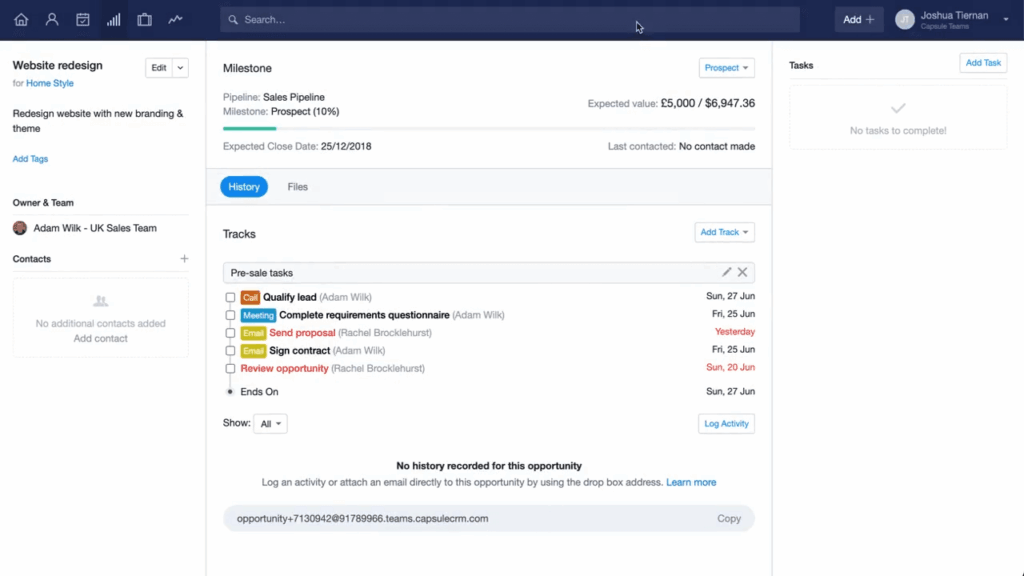
Capsule’s UI is consistently described as clean, intuitive, and suited to small teams. The key advantage is that the primary modules match how small businesses actually work.
Navigation model (what your team will actually click)
- Contact Management
- Sales Pipeline
- Projects
- Tasks & Calendar
- Automations (Growth+)
- Reports (Growth+)
Customization options (branding and layout)
Capsule supports basic appearance customization (logo and color scheme). This isn’t enterprise-grade UI customization, but it’s enough to make the CRM feel like an internal system rather than a generic SaaS tool.
Learning curve: new users vs experienced CRM users
For new CRM users, the learning curve is usually about concepts (stages, ownership, next action) more than UI. Capsule’s minimal surface area helps reduce that load. For experienced CRM users, the question is fit: Capsule prioritizes momentum and usability over infinite customization.
Mobile app experience
Capsule promotes mobile use (add notes, check tasks, update deals). If your team works in the field, test mobile quickly during trial: creating tasks, logging notes, and moving deals should feel frictionless.
Screenshot checklist (publication-ready)
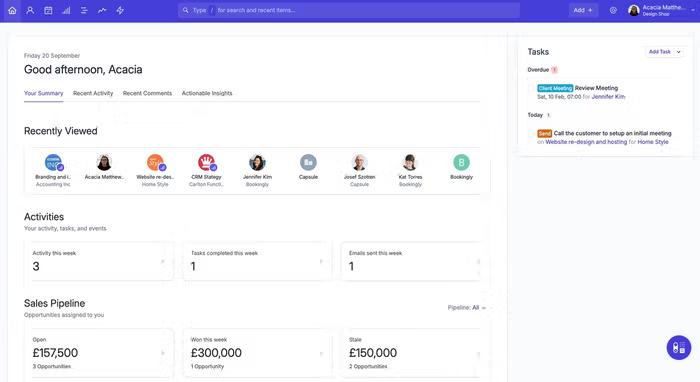
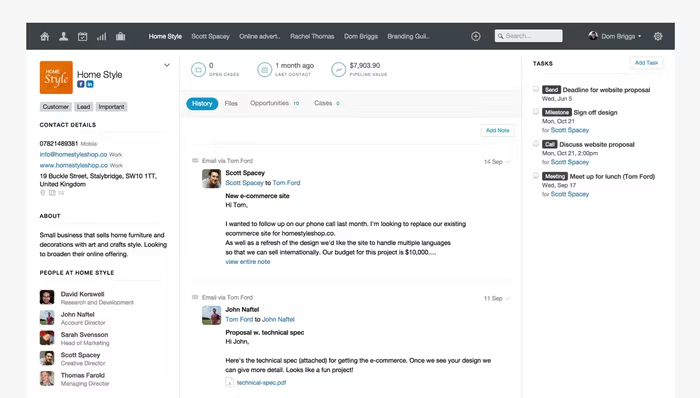
- Contact record view showing timeline (notes + emails + tasks)
- Pipeline Kanban view (deals by stage)
- Deal record view (email + next tasks)
- Tasks & Calendar view (overdue + due today)
- Projects board view (Kanban stages)
- Workflow automations screen (Growth+)
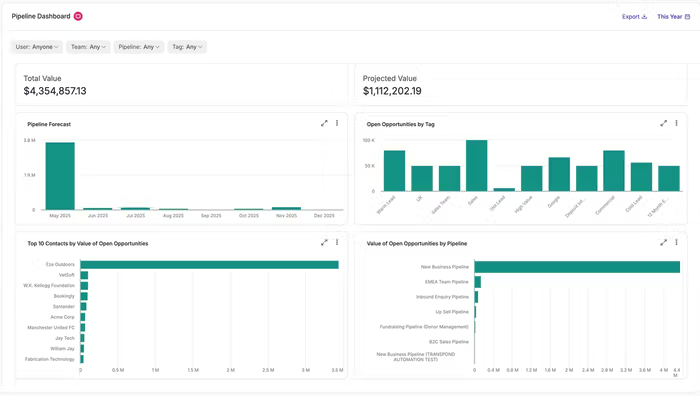
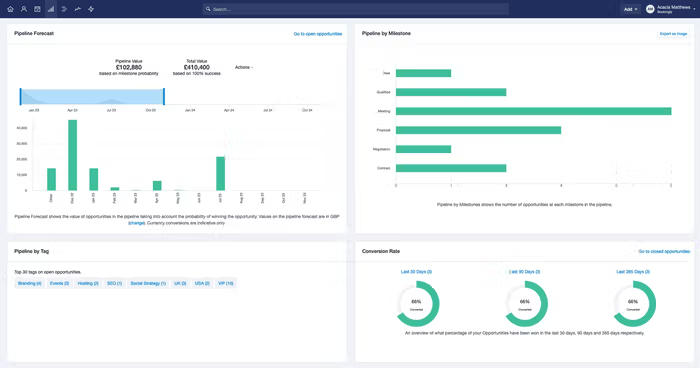
- Reporting dashboard (Growth+)
- Integrations directory / connected apps
- Security settings (2FA/SSO) if available in your tier
Core features breakdown
To keep this practical, this section uses a consistent structure: what it is, how it works, and a workflow you can run.
1) Contact management
What it is: Contacts in Capsule store and manage notes, emails, files, and tasks, and Capsule separates contacts into Person and Organization types.
Workflow you can run: Build a contact system your team will actually maintain.
- Create a small set of tags that matter for action (Lead source, Customer type, Priority tier).
- Add 3–5 stable custom fields (Renewal date, Service tier, Region, Primary product interest).
- Set an ownership rule: owner = accountable for the next action (not “who last emailed”).
2) Sales pipeline and opportunities
What it is: Capsule provides a Kanban-style drag-and-drop pipeline for tracking deals, with deal records showing emails, notes, and tasks in one place.
Workflow you can run: A small agency pipeline that doesn’t collapse.
- New lead
- Qualified
- Discovery booked
- Proposal sent
- Negotiation
- Won / Lost
Pipeline discipline rule (high leverage): Every opportunity must have (1) a next task, (2) an expected close date, and (3) a value estimate (even rough). This prevents “pipeline rot.”
3) Tasks and calendar
What it is: Capsule’s Tasks & Calendar area provides a view of what’s being worked on, and tasks can be linked to contacts, opportunities, or projects.
Workflow you can run: The “two lists” method.
- Daily: Due today + overdue
- Weekly: Next 7 days
Rules: every deal has a next task; every active client project has a next internal task.
4) Projects (sales-to-delivery continuity)
What it is: Capsule includes Projects designed to connect sold work to delivered work with linked tasks and Kanban-style boards.
Workflow you can run: Turn a won deal into a delivery plan.
- Opportunity marked Won
- Create a linked Project
- Project board stages: Kickoff scheduled → Requirements gathered → Work in progress → Client review → Delivered → Closed
- Standard tasks: kickoff email, access collection, draft deliverable, internal review, client review
5) Email integration and templates
What it is: Capsule provides Outlook and Gmail integrations designed to add contacts, store/track email conversations, and create tasks/opportunities from the inbox.
Workflow you can run: Templates + tracking for consistent follow-up.
- New lead acknowledgment
- Post-discovery summary
- Proposal follow-up
- Closed-lost thank-you + keep-in-touch
6) Workflow automation (Growth+)
What it is: Capsule’s workflow automation triggers actions when an opportunity or project changes stage/milestone or changes status (Won/Lost/Closed).
Availability: Workflow automations are available on Growth, Advanced, and Ultimate plans.
What it can do (examples):
- Assign to user or team
- Add a Track
- Create a linked Project
Workflow you can run: “Proposal sent” automation for a 5-person team.
- Trigger: Opportunity moved to “Proposal Sent”
- Actions: Assign to owner; add Track “Proposal follow-up”; create tasks (follow up in 2 days, follow up in 7 days); optionally move to “Stalled” after no response
7) Reporting and dashboards (Growth+)
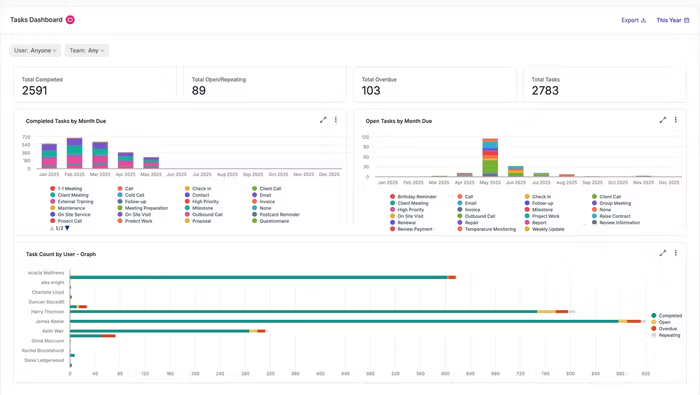
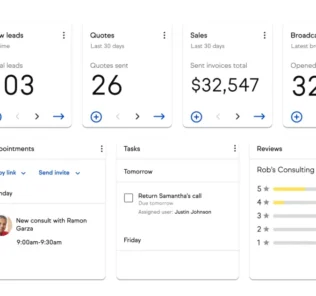
What it is: Capsule includes reporting dashboards that give visibility across tasks, pipeline, conversions, projects, and contacts. Dashboards are available on Growth, Advanced, and Ultimate.
Workflow you can run: The 3 reports that keep a small business honest.
- Pipeline health: deals by stage; deals stuck > X days
- Activity: tasks completed vs overdue
- Conversion: lead-to-qualified; qualified-to-won
Advanced features and integrations
Capsule’s integration story has three layers: (1) native integrations and add-ons, (2) automation connectors (Zapier), and (3) developer tooling (API + REST hooks).
API and developer platform
Capsule provides API documentation (v2) and uses an HTTPS endpoint under api.capsulecrm.com. Requests are authenticated using a Bearer token in the Authorization header. Capsule also supports event notifications via “REST hooks” (webhook-style events) to avoid constant polling.
Illustrative Python example (Capsule API):
import requests

BASE_URL = "https://api.capsulecrm.com/api/v2"
TOKEN = "YOUR_BEARER_TOKEN"

headers = {"Authorization": f"Bearer {TOKEN}"}

resp = requests.get(f"{BASE_URL}/users", headers=headers, timeout=30)
resp.raise_for_status()

data = resp.json()
print("User count:", len(data.get("users", [])))
Top integrations (buyer-oriented shortlist)
| Category | Integrations (examples) | What it enables |
|---|---|---|
| Gmail, Outlook | Email logging; create tasks/opportunities from inbox | |
| Calendar | Google Calendar | See Capsule tasks alongside events via calendar feed |
| Automation | Zapier | Connect Capsule to thousands of apps; trigger workflows |
| Accounting | Xero, QuickBooks, Sage, FreeAgent (etc.) | Connect finance workflows back to customer records |
| Marketing | Mailchimp, Transpond | Campaign sync; lifecycle-driven outreach; contact context |
| Support | Zendesk (where applicable) | Tie support context back to customer record |
Transpond (Capsule’s marketing add‑on): when it’s worth it
Transpond makes sense if you want a CRM + marketing stack without bolting on a separate platform and you value tight lifecycle sync. It may not be ideal if you already have mature marketing automation or if your “Active contact” counts would materially increase costs without strong segmentation governance.
Performance, reliability, and security
Capsule publishes unusually concrete security detail for an SMB-focused CRM.
Uptime and reliability
Capsule’s security features messaging cites high uptime (commonly framed as 99.99% over the last 12 months) and references status reporting. Use the vendor status page as the “source of truth” during incidents.
Hosting and data resilience
Capsule states it hosts customer data on AWS and describes replication across multiple locations plus consistent backups.
Encryption and access controls
- Encryption in transit (TLS referenced in security materials)
- Encryption at rest for customer data
- Role-based access controls and team membership-based record access
Compliance and certifications
- GDPR posture (as described in vendor materials)
- PCI‑DSS handling for payment collection; Capsule states it does not store credit card data
- SOC 2 Type II accreditation (announced June 20, 2023)
Security features for teams
Capsule highlights two-factor authentication (2FA) and single sign-on (SSO), including Microsoft 365 and Google Workspace options (as listed in security pages).
Customer support and learning resources
Capsule provides a solid learning ecosystem: support docs, webinars, video tutorials, and customer stories. Capsule’s positioning emphasizes “fast, friendly, human support” and suggests bots are used sparingly.
For teams on Ultimate, Capsule describes:
- Implementation support
- Import assistance
- Custom training & coaching
- Dedicated Customer Success Manager
- Priority support
Operational guidance: if your CRM rollout is business-critical and you have limited internal admin capacity, Ultimate may reduce adoption risk more than additional features would.
Pros and cons
| Pros | Cons |
|---|---|
|
|
User reviews and ratings summary
Capsule’s site and vendor content frequently cite strong satisfaction signals (commonly framed around G2 recognition and review volume). Treat ratings as directional; your results will depend on process fit and adoption habits.
Common praise themes (recurring patterns)
- Fast deployment / quick to adopt
- Ease of migration/import
- Clean interface and day-to-day usability
- Practical “enough structure” without admin overhead
Common complaint themes (what to watch)
- Fit gaps if you expect deep enterprise customization and objects everywhere
- Tier gating: dashboards/automation start at Growth+
- Support expectations vary by tier; validate if mission-critical
Alternatives and comparisons
You should compare Capsule based on how you sell and deliver work—not feature checklists alone. Capsule is best compared against other SMB CRMs that optimize for adoption, pipeline clarity, and workflow simplicity.
Side-by-side comparison table (Capsule vs common SMB CRMs)
| CRM | Focus | Key strengths | Ideal for | When it beats Capsule |
|---|---|---|---|---|
| Capsule CRM | Calm, practical CRM | High adoption; clean UI; projects built-in; strong security posture | Small teams that want momentum, not admin | — |
| Pipedrive | Sales-first pipeline | Pipeline visualization; sales execution focus | Sales-led teams with strong outbound rhythm | When you want heavier sales automation and pipeline tooling |
| Zoho CRM | Suite + customization | Deep customization + Zoho ecosystem breadth | Teams willing to invest in setup/admin work | When you need deeper customization and a broader suite |
| HubSpot CRM | CRM + marketing ecosystem | Strong inbound + marketing alignment; ecosystem depth | Marketing-led growth stacks | When marketing automation is the core driver |
| Copper | Google Workspace-native CRM | Deep Gmail/Workspace adjacency | Teams living entirely inside Google tools | When Workspace-native UX is the priority |
Quick decision guide:
- Choose Capsule if you want adoption, clarity, and service delivery continuity (Projects).
- Choose Pipedrive if you’re sales-first and want stronger pipeline-centric execution.
- Choose Zoho if you want deeper control and accept more admin work.
- Choose HubSpot if marketing + sales alignment is the center of gravity.
- Choose Copper if Google Workspace-native behavior is the deciding factor.
Who Capsule is best for (and who should avoid it)
Best for
- Small businesses that need structure fast: moving off spreadsheets and inbox search with minimal admin overhead.
- Service businesses that sell and deliver: Projects provides real sales-to-delivery continuity.
- Teams that want automation without a “CRM engineer”: Capsule’s automations are intentionally manageable (Growth+).
- Organizations that need credible security answers: encryption/hosting detail + SOC 2 Type II.
Consider avoiding if…
- You need enterprise-grade customization and complex objects everywhere.
- You require built-in omnichannel support and heavy marketing automation by default (Transpond is an add-on decision).
- Your reporting needs are advanced BI-first from day one (Capsule can integrate with BI tools, but deeper analytics may require more work).
Final verdict and recommendations
Overall score: 8.7/10
Score breakdown (buyer-oriented)
- Core CRM features (contacts + pipeline + tasks): 9/10 — Strong usability and day-to-day workflow alignment.
- Projects and delivery support: 8.5/10 — Projects inside the CRM is meaningful for service firms.
- Automation and reporting: 8/10 — Clear SMB-friendly model; gated to Growth+.
- Integrations and extensibility: 8.5/10 — Solid integration coverage plus API + REST hooks.
- Security and reliability: 9/10 — Public security details; SOC 2 Type II; strong uptime posture.
- Value for money: 8/10 — Competitive annual pricing; Transpond may increase TCO depending on needs.
Recommendation (practical, low-risk path)
- Start with the Free plan to validate the UI and mental model (contacts, pipeline).
- Run a two-week paid trial with real workflows (email integration, tasks, at least one Projects board).
- If you need consistent follow-ups and handoffs, go straight to Growth for automations + dashboards.
- If migration is complex or adoption risk is high, consider Ultimate for implementation support and priority success coverage.
Capsule CRM
Capsule CRM is a simple CRM system aiming to keep your business organized, improve your customer relationship, and to make the most of sales opportunities, all the while minimising user input. The contact page gives you a complete overview of a contact so that you can keep track of the people, companies and other organizations that you do business with and with the option to share contacts with co-workers ensuring a single up-to-date view of the contact. Use Capsule to track bids, deals, proposals and other opportunities. You also have the option to generate reports and extracts from the pipeline…
•Track all history
•Attach documents
•Manage tasks
•Share with co-workers
•Free
•Professional- $12 MONTH/USER
•Track all history
•Attach documents
•Manage tasks
•Add notes and store emails by sending them from any email client into Capsule.
•Add and complete tasks that need to be done for each contact.
•Record the information you need about each contact.
FAQ (15 common questions)
1) Does Capsule CRM have a free plan?
Yes. Capsule describes a Free plan for up to 2 users, positioned as a way to test the platform.
2) How much does Capsule CRM cost?
Capsule’s annual billed pricing is commonly presented around $18 (Starter), $36 (Growth), $54 (Advanced), $72 (Ultimate) per user/month (billed annually). Monthly billed pricing is typically higher (often shown around ~$21/$38/$60/$75), depending on term and region.
3) Is there a free trial?
Capsule promotes a 14‑day trial for paid plans, and it is described as cardless in some contexts.
4) What’s the difference between Starter and Growth?
A key practical difference: workflow automation begins at Growth (and above). Reporting dashboards are also available on Growth+.
5) Does Capsule support projects or just sales?
Capsule supports Projects with list and Kanban views, designed to connect sales to delivery and reduce context loss after a deal is won.
6) Does Capsule integrate with Gmail and Outlook?
Yes. Capsule provides Gmail and Outlook integrations and emphasizes email conversation tracking and creating tasks/opportunities from the inbox.
7) Can Capsule automate tasks when a deal changes stage?
Yes—via workflow automations (Growth+). Capsule documents triggers tied to opportunity milestones/stages and status changes, with actions like assigning users/teams, adding Tracks, and creating linked Projects.
8) What integrations matter most for accounting workflows?
Capsule documents integrations with popular accounting tools (e.g., Xero and QuickBooks, among others) depending on region and plan.
9) Does Capsule have an API?
Yes. Capsule provides API documentation (v2) and describes Bearer token authentication for requests.
10) Does Capsule support webhooks?
Capsule documents “REST hooks” for event notifications (webhook-like behavior) so external systems can react to changes without polling.
11) How secure is Capsule CRM?
Capsule publishes security documentation covering encryption in transit/at rest, AWS hosting, backups/replication, PCI‑DSS payment handling (and not storing cards), and SOC 2 Type II accreditation.
12) Does Capsule support SSO and 2FA?
Capsule describes SSO and 2FA as supported security features, with SSO options including Microsoft 365 and Google Workspace (as listed in security pages).
13) What is Transpond, and do I need it?
Transpond is Capsule’s marketing add‑on. You only need it if you want marketing automation/email marketing features integrated into the Capsule ecosystem.
14) How does Transpond pricing work?
Capsule materials distinguish billable “Active contacts” vs non-billable “Inactive contacts” in Transpond; costs can scale with how many contacts you actively market to. Plan segmentation carefully.
15) What’s the best alternative if Capsule feels too “light”?
If you want deeper customization and a broader suite ecosystem, Zoho CRM is a common comparison. If you want sales-heavy pipeline execution, Pipedrive is often compared. If you want a Google Workspace-native CRM experience, Copper is a frequent alternative.


By clicking Sign In with Social Media, you agree to let PAT RESEARCH store, use and/or disclose your Social Media profile and email address in accordance with the PAT RESEARCH Privacy Policy and agree to the Terms of Use.