
Hive Review: The Standout Strengths, Pricing Truths, and Why Teams Stay (or Migrate)
Overall verdict (short version): 8.6/10
Hive is best when you want one place to run projects with real collaboration, not just task boxes.
It is not the cheapest path to “basic task tracking,” and the add-on model can make pricing feel like building your own combo meal.
Best for
- Marketing teams juggling deadlines, assets, approvals, and frequent intake
- Agencies managing client work where proofing and external reviewers matter
- Operations and PMO teams that need visibility across many projects and teams
- Teams that want task management plus time tracking and resourcing in the same system
Not ideal for
- Teams who want a flat, all-inclusive price without add-ons
- Very lightweight teams who only need a simple kanban board and nothing more
- Engineering teams who live in sprint backlogs and want deep developer-first workflows as the primary experience (Hive can integrate, but it is not trying to be a Jira clone)
Here’s what this review covers
- Introduction
- What Hive is trying to be (and Hive in one sentence)
- Pricing and plans: what you should know before you fall in love
- Setup and onboarding: what it feels like to start using Hive
- User interface and day-to-day usability
- Core project management features: what you actually get
- Collaboration: where Hive stands out
- Proofing and approvals: built for creative workflows
- Forms: intake that turns into work automatically
- Time tracking and resourcing: where Hive gets serious
- Goals: connecting projects to outcomes
- Dashboards and reporting
- Automations and integrations: Hive’s productivity engine
- API and extensibility
- Apps and device experience
- Security and compliance posture
- Customer support and learning resources
- What real users say: ratings and common themes
- Pros and cons
- Hive versus alternatives: how to decide without overthinking it
- Who Hive is best for (and who should avoid it)
- Final verdict
- FAQ (15 practical questions)
Introduction
Most teams do not fail because they lack talent. They fail because work gets scattered.
A request lands in email. Feedback lives in a PDF comment thread. A deadline sits in someone’s calendar. Updates happen in chat. The real plan is split between a spreadsheet, a whiteboard, and a meeting that nobody wants to attend again.
Hive is built for that kind of mess.
It is a project management platform that tries to pull tasks, collaboration, proofing, time tracking, email, intake forms, dashboards, and automation into one workspace. Hive also markets itself as a “democratically-built” platform and claims an “adoption guarantee,” which is a bold promise in a category full of tools people buy and then quietly abandon.
HiveI am going to review Hive the way a real buyer would. Not as a feature checklist. More like: What does it feel like day to day, where does it shine, where does it get annoying, and who should actually pay for it.
This review follows the same long form structure you shared in your sample.
What Hive is trying to be (and Hive in one sentence)
What Hive is trying to be
Hive positions itself as a single workspace where teams can organize work, collaborate, automate repetitive steps, and track time. It highlights flexible project views, templates, chat, proofing, external users, time tracking, resourcing, and integrations.
It also leans hard on three ideas:
- Flexible views so different people can see the same work in different ways (kanban, gantt, calendar, table, portfolio, more).
- Collaboration built in so you are not always bouncing out to other tools for chat, meeting notes, approvals, and email threads.
- Automation and integrations so the tool is not just where work goes to sit, but where work moves forward.
If that sounds like a lot, it is. Hive is not minimal. The upside is power. The downside is you need to design your setup with some care.
Hive in one sentence
Hive is a project management platform built around “action cards” (tasks) and flexible views, with native collaboration features like Notes, proofing, chat, email inside Hive, plus time tracking, goals, dashboards, and automation options.
Pricing and plans: what you should know before you fall in love
Let’s talk money early, because Hive’s pricing approach affects how you experience the product.
The big picture
Hive promotes that pricing starts from $5 per user per month. It also references that Teams plans start at $12 per month per user in its own content.
Hive offers a free plan as well, and third-party listings commonly describe it as good for lightweight use. One Software Advice listing shows a Free plan with items like 200MB storage, unlimited tasks, unlimited collaborative notes, and native chat messaging.
Hive also has an Enterprise tier (custom pricing), which is typical for this category.
So far, this looks normal.
HiveWhere it gets interesting is the packaging.
The add-on model (this is the part people argue about)
Hive uses add-ons for several capabilities. On its pricing page, it lists flexible add-ons at +$5 each, including things like proofing and approvals, timesheets, team resourcing, advanced dashboards, automations, SSO and enterprise security controls, and external users. It also lists Buzz AI at +$8 as an add-on.
Forbes Advisor also calls out this structure directly, noting that many premium tools are add-ons and that add-ons cost $5 per user per month.
This matters because Hive can feel like two different products depending on what you buy:
- Base Hive can cover core task and project management.
- Fully-loaded Hive can replace several other tools, but the bill rises fast.
Neither approach is wrong. But you want to decide it on purpose.
Buzz AI pricing is separate and very clear
Hive’s AI email assistant, Buzz, has its own pricing page.
- Standalone Buzz app: $16 per user per month (with a 14-day free trial)
- Buzz as a Hive add-on: $8 per user per month
Even if you do not care about AI, this pricing clarity is refreshing compared to the “contact sales for everything” vibe you sometimes get in workplace software.
Automation limits and “what counts”
Hive’s pricing page includes a note that Automations include 500 automation tasks per month, and for more tasks you contact sales.
This is a subtle point. Automation pricing is rarely about whether automation exists. It is about volume. If you automate high-frequency events, you can run into task limits.
External users
Hive supports external collaboration, and it also sells an External Users add-on. The pricing page notes that each license includes 5 external user licenses.
In help documentation, Hive describes external users as limited to the actions and messages in assigned projects, without access to the entire workspace.
If you work with clients, vendors, reviewers, or freelancers, external access can either be a deal-maker or a frustration depending on how you plan it.
My take on Hive pricing
Hive’s pricing can be a bargain or a budget surprise.
If you want just task management and a few views, it can be competitive.
If you want proofing, resourcing, timesheets, and advanced dashboards, you need to map the add-ons early. Do not “figure it out later.” Later is how your finance team ends up cranky.
Setup and onboarding: what it feels like to start using Hive
Hive pushes templates and quick start workflows to help you get moving. On the homepage, it highlights starting projects quickly with hundreds of templates.
There is also a Quick-Start Guide in Hive’s help center that frames Hive as one dashboard for chat, tasks, projects, and files, plus flexible views.
The best first step is not “build everything”
Most teams make the same mistake with project management tools: they recreate their entire company inside the tool on day one.
Hive is flexible enough that you can do that. You should not.
A better approach:
- Pick one workflow you actually run every week (creative requests, campaign launches, client onboarding, monthly reporting).
- Use a template or create one clean project.
- Get your naming, statuses, and labels stable.
- Only then replicate.
Hive’s template system supports action templates, which can populate subactions, assignees, due dates, and dependencies. That is a great way to build consistency across projects.
Hive Home helps reduce the “where do I look” problem
Hive’s help docs describe the Home page as a central dashboard for tasks, projects, and people, replacing the older My Actions View while still keeping a prioritized list of assigned actions. It also supports widgets like Projects, People, Approvals, and more.
That matters because Hive can feel big. Home gives you a way to keep your daily view focused, even if the platform has a lot going on.
Learning curve: real users mention it
On G2, Hive has a strong rating, and reviews often praise flexibility. But you can also see the pattern: some users say it can feel overwhelming at first, and that Hive University and support help them get comfortable.
That rings true for tools like Hive. The first week is about orientation. The second week is where value starts.
User interface and day-to-day usability
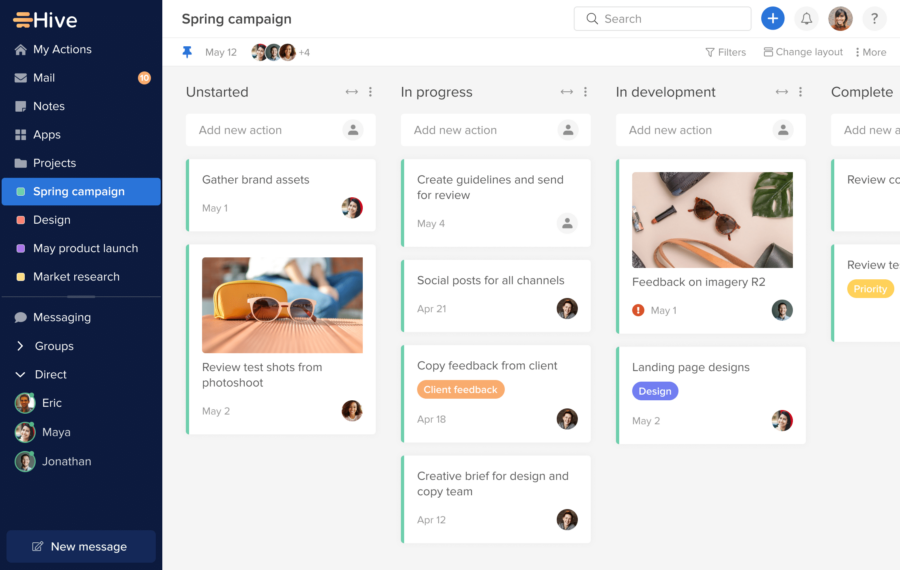
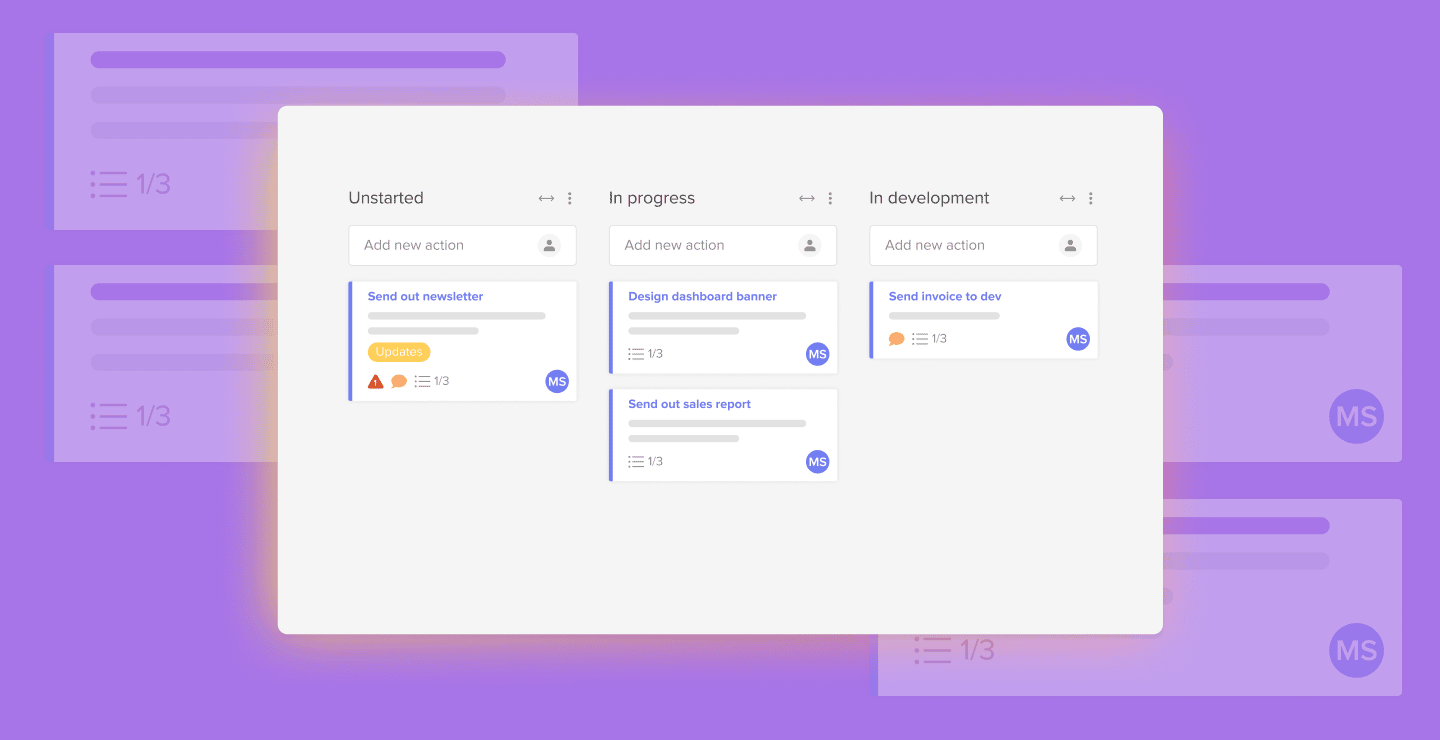
Hive’s core UI concept: action cards
Hive’s task unit is the action card. Hive literally calls it your “home base” for details and collaboration.
In Hive’s own help doc, the action card shows key details like assignee, due date, status, and supports collaboration in the card itself. It also mentions you can schedule time so it appears as an event in Google or Outlook calendar if you connect Hive Calendar.
Action cards are where most of the “this feels like a real workspace” experience comes from, because they are not just checkboxes. They carry context.
Subactions are a big part of why Hive works for complex work
Hive supports subactions, and the help documentation makes two points that are more important than they sound:
- Subactions can have assignees, due dates, and descriptions like a main action.
- Subactions can be nested. You can create subactions for subactions.
This is a practical feature for real projects, because real work is rarely a single task. It is a chain.
Comments and mentions keep work near the work
Hive supports commenting on actions and subactions, plus mentioning teammates with @mentions. It also supports notifying all followers of an action card using a special mention.
If you have used tools where comments feel bolted on, Hive’s emphasis on in-card discussion is a plus.
Views: Hive’s flexibility is real
Hive lists a wide set of project views on its homepage:
Kanban, Gantt, Timeline, Table, List, Calendar, My Actions, Portfolio, Summary, Label, Team, Project.
This matters because different teams think differently:
- Designers often like kanban and proofing.
- PMOs often like gantt, portfolio, dashboards.
- Ops teams often like table views and structured fields.
- Individuals often want a personal task list view.
Hive tries to serve all of them without making you pay for separate products.
Tabs and “who sees what” can get tricky
Hive’s project FAQ documentation notes that changing the default project layout can affect everyone invited to the project, while adding a new tab might be private or shared depending on how it is set.
This is one of those details that feels small until it causes confusion.
If you are rolling Hive out to a big team, you will want a simple internal rule like:
- Default layouts are shared standards.
- Personal tabs are clearly labeled and private unless needed.
- Team reporting tabs are shared and owned.
Do that, and you avoid “why did the board change” moments.
Core project management features: what you actually get
Task creation and structure
Hive gives you several ways to create tasks and structure them:
- Action cards as the base unit
- Subactions for task breakdown
- Action templates to standardize repeat work, including subactions, assignees, due dates, and dependencies
- Dependencies with optional auto-scheduling controls
This is a solid toolkit for teams who need more than a checklist.
Dependencies and scheduling
Hive supports dependencies, and it also supports auto-scheduling behavior. The dependencies help doc explains that to make dependencies affect scheduling, you need to turn on Gantt auto-scheduling in workspace settings. If it is off, dependencies can remain visual.
Another help doc describes auto-scheduling options like Off, On, and Strict.
This is the kind of feature that separates “task boards” from “project scheduling tools.” It is also where you need internal discipline, because auto-shifting dates can create chaos if teams do not understand the rules.
Gantt view is not an afterthought
Hive has a dedicated gantt charts help section, and it includes practical mechanics like adding dates in multiple ways and adding dependencies in gantt view.
If you manage projects where sequencing matters, gantt is useful. If you do not, it can become visual clutter. Hive lets you choose.
Templates can become your team’s operating system
Hive supports action templates, and it also has a broader template library. On the homepage, it pushes the idea of starting projects quickly with hundreds of templates.
The right way to use templates in Hive is not “grab one and go.” It is:
- Start with one internal template that matches your real workflow.
- Refine it for a month.
- Then roll it out to related work.
That is how you turn a project tool into a process tool.
Collaboration: where Hive stands out
This is the part where Hive feels different from simpler tools.
Native chat and messaging
Hive includes a native messenger for direct and group conversations. The Instant Messaging help article describes starting conversations with groups or individuals, and even mentions voice or video chat as part of the experience.
There is also an important platform constraint: Hive’s platform documentation notes that Hive Messaging is not available if Slack is connected. You can have either Hive Messenger or Slack turned on, not both at the same time.
That is a tradeoff.
If your company lives in Slack, you will probably keep Slack and use the Hive for Slack integration. Hive’s Slack integration help doc says you can share Hive actions to Slack channels, create actions via Slack commands, and jump to Slack from Hive.
If your company wants to reduce tool sprawl, native chat can work, but only if people actually use it.
Hive Notes: meetings that create real tasks
Hive Notes is Hive’s collaborative note system. Hive’s Notes page frames it around meetings and agendas, turning talking points into tasks, assigning tasks, setting deadlines, and leaving meetings with next steps.
This sounds obvious. It is not.
Most teams take notes and then recreate tasks somewhere else. Hive is trying to shorten that loop.
Hive Notes also supports adding goals into notes, which is a nice connection between daily work and bigger targets.
AI in notes, plus AI in email, plus AI in task creation
Hive is clearly pushing AI as a real part of the workflow, not just a marketing label.
On the Hive homepage, it highlights Buzz AI Assistant, an AI project and task builder, and email automations with AI.
Hive also has a Notes AI feature page focused on AI assistance inside Hive Notes.
Buzz is positioned as an AI email assistant that reads, replies, books meetings, and handles next steps.
In plain terms, Hive is going after the time sink that kills most knowledge work:
- Inbox triage
- Meeting follow-ups
- Task creation from conversations
- Status updates
The value depends on whether your team trusts the outputs and whether governance is strong enough to keep AI from spamming workflows.
Hive Mail: email inside the project workspace
Hive Mail is one of Hive’s more distinctive features.
The Hive Mail help article states that you can access your inbox, send messages, and organize email follow-ups without leaving Hive. It explains how to enable it through the Apps area.
It also lists practical actions:
- Turn an email into an action card (follow-up tasks), and the email thread lives in the action card
- Link emails to existing actions
- Reply, reply-all, or forward right from action cards
- Compose a new email from within an action card
- Keep visibility because linked email threads update dynamically, and anyone with access to the action card can view and reply
Hive Mail supports Google (Gmail) and Microsoft (Outlook 365) according to the same article.
This feature is not for everyone. Some people want email to stay in email.
But if you run projects where email is the source of truth for requests, approvals, or client conversations, attaching the thread to the task is powerful. It cuts down on “what did they say” archaeology.
HiveProofing and approvals: built for creative workflows
If you work in marketing, design, or any environment where files get reviewed, you already know the pain:
- Feedback spread across email, chat, and comments
- No clear “approved” moment
- Stakeholders responding days late with “small changes”
Hive includes proofing and approvals as both a feature area and an add-on.
Hive’s proofing feature page highlights:
- Full external proofing
- Email notifications for external users
- Unlimited proofing
- Importing documents via email, URL, or direct upload
The Hive help article on external approvers states that external approvers get an email with a link to view the proof, annotate, comment, and approve or request changes. It also notes that adding an email as an external approver does not grant access to the action card or projects, while still allowing tracking approval status in the card.
Hive’s proofing feature page also references elements like version tracking, approvals reporting, and approval templates.
If you have ever managed a campaign with ten stakeholders and a tight deadline, this is the kind of feature that saves your sanity.
The main caution: proofing only works when everyone actually uses it. If leaders insist on sending feedback in email, you end up duplicating work.
Forms: intake that turns into work automatically
Hive Forms is designed for capturing requests and turning them into actionable work.
Hive’s Forms help documentation explains:
- Each form has a link you can share externally
- You can copy the URL from the Forms Library
- You can use separate internal and external titles, so internal naming stays organized while external users see a clean title
- It supports rich text formatting in form field answers (bold, italic, underline), and formatting carries into the completed card or project
- Form drafts save automatically in the same browser and device, though attachments do not save as drafts
Hive’s blog on Forms explains that forms help you capture information internally or externally, and lists use cases like opinion polls, gathering contact info, collecting orders, capturing new project requests, and submitting performance reports.
There is also older Hive content stating that submitted forms automatically create an action card with form details.
Forms are one of those features that sound boring until you rely on them.
In many teams, “work intake” is the hidden bottleneck. When you fix intake, you fix planning. When you fix planning, deadlines stop being a surprise.
HiveTime tracking and resourcing: where Hive gets serious
Hive does not just offer “start a timer.” It positions time tracking and resourcing as a unified system.
Hive’s time tracking feature page states you can consolidate resourcing, time tracking, timesheets, and team planning into one app.
It also lists capabilities that matter in the real world:
- Automatically log time spent on action cards across projects
- Track time at both action and subaction level
- Log time estimates
- Categorize time by channel
On the resourcing side, it mentions:
- View team utilization
- Add individual teammate capacity
- Customize resourcing permissions
- Set custom holidays and resourcing blocks
For reporting:
- Track time spent by project for billing and projections
- Log hourly time by category
- Analyze patterns over time
- Configure custom reports by date range
- Filter by teammate, project, and more
- Set and track utilization targets
It also explicitly frames three use cases:
- Track time individually (manual or automatic, compare estimates vs actual)
- Track team time (staff projects based on availability, skill sets, workload)
- Track time for clients (timesheets and billable hours for exporting and delivery)
This is a strong set of features for agencies, consultancies, and ops teams.
The catch is cultural. Time tracking only works if your team commits to it and if reporting is used fairly. If time tracking becomes punitive, people will game it.
Goals: connecting projects to outcomes
Hive includes goal setting and tracking inside the platform.
The goals feature page emphasizes:
- Creating many goals so everyone understands what they contribute to
- Assigning goals to teammates
- Tracking progress and activity
- Color-coded status for on-track items
- Exporting goal information for reviews
It also supports multiple goal formats:
- Task-based goals
- Numerical goals
- Monetary goals with multi-currency support
- Custom goals that sync data from other systems like HubSpot, Salesforce, and Gong
This is the kind of feature that can either be inspiring or ignored.
When it works, it helps people see why their work matters. When it fails, it becomes a dusty dashboard no one opens.
The best use is simple: pick a few goals, tie them to projects, review them in Notes during recurring meetings.
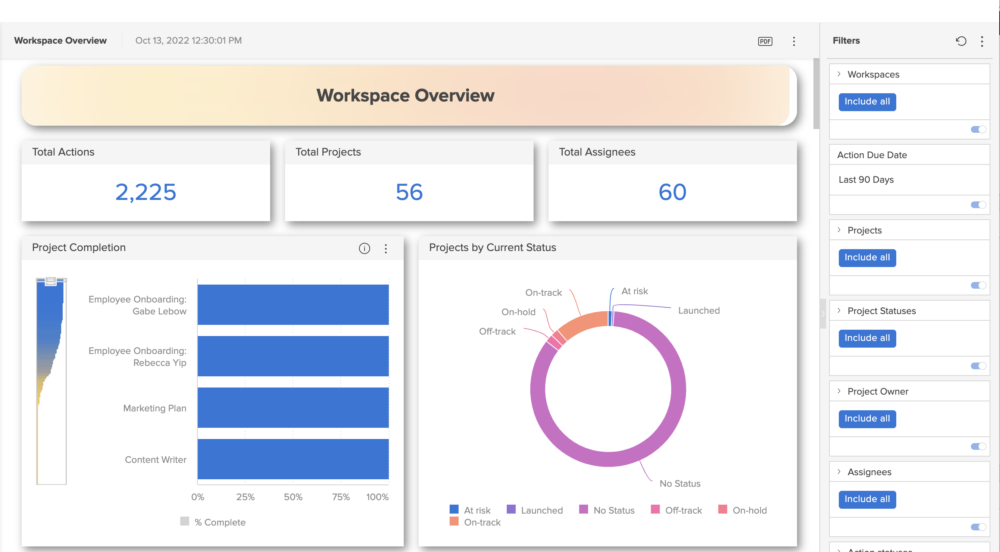
Dashboards and reporting
Hive Dashboards are meant to be flexible and real-time.
The dashboards page describes:
- Bringing relevant data from workspace and projects into one place
- Customization with widgets, filters, and external embeds
- Real-time updates reflecting current work
Hive’s dashboards help documentation adds depth:
- You can create charts directly from a Note (dashboards in Notes)
- You can pin a dashboard to the left navigation
- Dashboard templates allow visualizing multiple data sets with drag-and-drop layouts
- Dashboard settings include privacy controls and selecting projects included in widgets
Dashboards can be a trap if you build too many.
The best dashboards answer a few repeating questions:
- What is overdue?
- What is blocked?
- What is waiting for approval?
- Who is overloaded?
- Are we on pace?
Hive gives you the building blocks. You still need to choose the story.
Automations and integrations: Hive’s productivity engine
Hive positions automation in three layers:
- Templates (standardizing repeat work)
- Internal workflows (automating within Hive)
- Cross-app automation (Hive Automate plus integrations)
Hive’s automations feature page describes internal workflows as automating small, repeatable tasks inside Hive, and Hive Automate as cross-app automations through an app toggle. It also promotes over 1,000 integrations, a growing library of workflow recipes, and a drag-and-drop workflow builder with no coding required.
Hive Automate help documentation describes it as establishing workflows across apps using triggers and actions, organized into “recipes.”
There is also a help article stating Hive Automate offers a 14-day free trial for first-time users.
Hive’s integrations page describes integrating Hive with tools and highlights Zapier integrations with platforms like HubSpot, Zendesk, Pipedrive, Freshdesk, Harvest, and more.
And on Hive’s homepage, it visually highlights integrations with tools like Box, GitHub, Gmail, Google Calendar, Google Drive, HubSpot, Intercom, Jira, Outlook, QuickBooks, Zoom, Slack, Teams, and Zapier.
HiveMy take on Hive automation
Automation is where Hive can quietly become a serious operations tool.
But it is also where teams can overbuild and create noise.
The safe approach is:
- Start with one automation that removes a real annoyance (auto-assign intake requests, auto-notify reviewers, auto-create follow-up tasks from email).
- Track whether it saved time.
- Add the next one only after the first proves itself.
API and extensibility
Hive provides API documentation through developers.hive.com.
A developer documentation page explains how to generate an API key in Hive by going to profile settings and an “API info” tab.
Hive’s help center also points users to its API documentation and notes where to locate API credentials (Edit Profile then API Info).
For most buyers, API access matters in two cases:
- You have internal systems that must sync with your project platform.
- You are serious about reporting and want to pull data into a BI tool.
Hive is not hiding behind “no API unless enterprise,” at least in how it presents documentation access.
Apps and device experience
Hive offers desktop and mobile access.
Hive’s download page promotes desktop apps for Mac and Windows, and mobile apps for iOS and Android.
Hive’s help center also directs users to the Download Hive page for latest versions.
If your team works across devices, this matters. A project platform that only works well on desktop becomes a bottleneck.
Security and compliance posture
Hive has a dedicated security page. It explicitly states it is SOC2 certified.
It also describes security measures across layers, including:
- Access control and authentication techniques
- Audit logs and monitoring of actions
- Workspace-based segmentation
- Expiring links (60 minutes)
- SSL encryption (256-bit)
- Hosting in data centers with ISO 27001 accredited hosting
It also references a vulnerability disclosure program with a submission process.
Security is not just a checkbox. It is also about admin controls, permissions, and SSO, which Hive lists as an add-on item in its pricing structure.
If you are in a regulated environment, you should still do a vendor security review. Hive provides a starting point and offers a security white paper link from its security page.
HiveCustomer support and learning resources
Hive highlights resources like:
- Help and support articles
- Hive University
- Webinars
- Community discussions
- Professional services
It also links to a platform status page from its footer, which is a good sign for operational transparency.
On the automation side, Hive even mentions access to an in-house automation expert session, which is unusual and genuinely helpful for teams trying to build real workflows.
What real users say: ratings and common themes
Ratings snapshot
On G2, Hive shows a 4.6 rating with hundreds of reviews listed on the review page.
On Capterra, regional listings show Hive with an overall rating around the mid-4 range based on hundreds of reviews, depending on locale.
Do not treat ratings as truth. Treat them as direction.
The real value is themes.
Positive themes that come up often
- Flexibility in how teams can organize work
- Consolidating multiple tools into one workspace
- Strong collaboration features
- Responsiveness of Hive support (also echoed in Hive’s own testimonials)
Friction themes to watch
- Some users mention the platform can feel overwhelming at first, especially when managing many boards or workspaces
- Pricing can add up because of add-ons, which multiple reviewers and publications point out
This is the trade: a broad platform gives you many options, and options require decisions.
Pros and cons
Pros
- 1. Flexible views that match how different teams think
Hive offers a wide range of views, including kanban, gantt, timeline, table, and portfolio-style views. - 2. Action cards feel like a real work hub
Tasks carry context, comments, scheduling, and collaboration in one place. - 3. Subactions and templates support real workflows
Nested subactions and reusable templates help standardize repeat work and reduce reinvention. - 4. Strong collaboration stack inside the platform
Chat, Notes, proofing, external approvals, and email in Hive reduce tool switching when adopted well. - 5. Time tracking and resourcing are more complete than many competitors
Automatic and manual time tracking, utilization concepts, reporting, and client-focused tracking are baked in. - 6. Automation story is credible
Internal workflows, Hive Automate recipes, integrations, and templates provide multiple ways to speed up repeat work. - 7. Clear security positioning
SOC2 certification and detailed security-layer explanations are explicitly stated.
Cons
- 1. Add-ons can make budgeting harder than it needs to be
If you want proofing, resourcing, timesheets, dashboards, and automations, you can end up stacking multiple add-ons. Hive itself lists add-ons at +$5 each, and external reviews call out the same issue. - 2. Slack versus Hive messaging is an either-or decision
Hive’s documentation notes you cannot use Hive Messenger when Slack is connected. - 3. Complexity is real
Hive is flexible, but flexibility comes with setup choices. Users mention it can feel overwhelming at first. - 4. Automation limits can appear once you scale
Automation tasks per month can be capped in packaging, which means high-volume automation needs planning.
Hive versus alternatives: how to decide without overthinking it
You do not need a 40-tab spreadsheet to choose a project platform. You need to know what kind of work you run.
Choose Hive if:
- Your work involves deliverables and review cycles (marketing, design, content)
- You need time tracking and resourcing tied to tasks
- Email is part of execution, not just communication
- You want a platform that can replace multiple tools if configured well
Consider simpler tools if:
- You just need a board, due dates, and basic collaboration
- You do not plan to track time
- You do not need proofing or external approvals
Consider other platforms if:
- Your team lives in strict sprint planning and backlog workflows and wants that as the primary experience
- You already have separate best-of-breed tools for time tracking, docs, and proofing, and you are happy stitching them together
Hive can integrate with many tools. The question is whether you want integration or consolidation.
Who Hive is best for (and who should avoid it)
Best fits
Agencies and client services
Proofing, external approvals, time tracking, and resourcing can all matter here, and Hive supports each area.
Marketing teams
Forms for intake, templates for repeat campaigns, dashboards for visibility, and proofing for approvals are a strong combination.
Operations and PMO teams
Portfolio-style views, dashboards, goals, and automation can help centralize visibility.
Poor fits
Teams that resent process
If your culture fights structure, Hive will become a cluttered space fast. That is not Hive’s fault, but it will be your reality.
Teams that want one flat fee for everything
Hive’s add-ons model can irritate teams who want a single packaged price.
Final verdict
Hive is a serious platform that can run real work.
Its biggest strength is that it is not only a task tracker. It is a workspace where tasks, conversations, files, approvals, time, and goals can connect in a way that reduces daily friction.
Its biggest weakness is the same thing: it is broad. Broad tools demand choices. You have to decide which modules matter, how to structure projects, and which add-ons to buy.
If you like the idea of consolidating tools and you are willing to set up a clean system, Hive is an easy recommendation.
If you want a minimal tool that nobody has to think about, Hive may be more than you need.
HiveFAQ (15 practical questions)
1. What is Hive’s main building block?
Hive is built around action cards, which hold task details and collaboration context.
2. Can Hive handle complex task breakdowns?
Yes. Hive supports subactions, including nested subactions, and subactions can carry their own assignees and due dates.
3. Does Hive support gantt charts and dependencies?
Yes. Hive supports gantt charts and dependencies, and it offers auto-scheduling options that can be enabled in settings.
4. What project views does Hive offer?
Hive lists many views, including kanban, gantt, timeline, table, list, calendar, portfolio, and more.
5. Does Hive include built-in chat?
Yes, Hive has native messaging for direct and group communication.
6. Can I use Hive chat if my team uses Slack?
Hive’s documentation indicates Hive Messaging is not available if Slack is connected, so you typically choose one.
7. What is Hive Notes used for?
Hive Notes is used for meeting agendas, collaborative notes, and turning discussion points into tasks with assignments and deadlines.
8. Does Hive support proofing and approvals for files?
Yes. Hive supports proofing and approvals, including external proofing and external approvers who can annotate and approve via email links.
9. Can Hive collect requests through forms?
Yes. Hive Forms supports shareable links, internal and external titles, rich text in responses, and draft saving in the browser.
10. Does Hive support time tracking?
Yes. Hive supports time tracking across action cards and subactions, estimates, categorization, and reporting.
11. Does Hive support resourcing and utilization?
Yes. Hive’s time tracking page describes utilization views, teammate capacity, resourcing permissions, and resourcing blocks like holidays.
12. Can Hive track goals?
Yes. Hive supports task-based, numerical, monetary, and custom goals, including syncing data from other systems like HubSpot and Salesforce for custom goals.
13. What are Hive Dashboards for?
Dashboards are used to bring workspace and project data into one place with customizable widgets, filters, and external embeds, updated in real time.
14. Does Hive offer automation?
Yes. Hive offers internal workflows, Hive Automate for cross-app automations using recipes, and a large integration ecosystem.
15. What does Hive say about security?
Hive states it is SOC2 certified and describes multiple layers of security controls, including encrypted connections and audit logging.


By clicking Sign In with Social Media, you agree to let PAT RESEARCH store, use and/or disclose your Social Media profile and email address in accordance with the PAT RESEARCH Privacy Policy and agree to the Terms of Use.